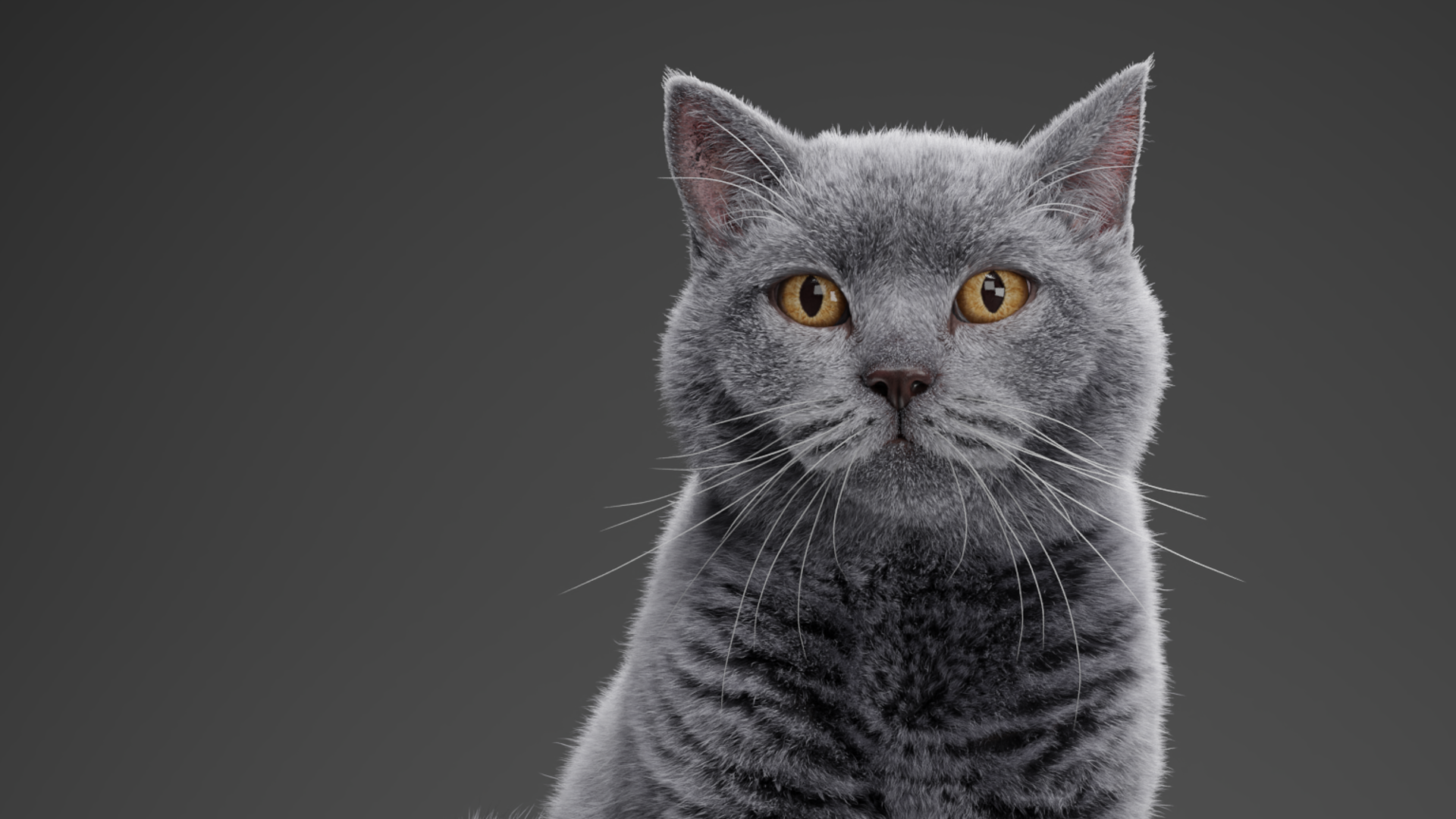
Blender New Hair System in Practice: Creating Realistic Fur for a British Shorthair Cat
Overview
In this tutorial, we'll use Blender's new Hair Curves system to create realistic fur for a British Shorthair cat. By combining procedural generation with manual grooming, we'll create a short, dense, and naturally plush fur look.
Preparation
Before we start, let's first analyze the characteristics of British Shorthair fur so we have a clear direction for the rest of the process.
British Shorthair fur has three main characteristics: it is short, dense, and plush, which gives the cat its overall round and full appearance. Because the fur is so thick, it naturally opens up into splits in areas where the hair is longer or the underlying model stretches. These are important details for the grooming process.
Cats typically have a double coat, so it has a clear sense of depth and layering. When creating the hair, we need to pay close attention to its volume, thickness, and variation between layers.
Before creating any type of hair, it's always a good idea to analyze its growth pattern and visual characteristics first and identify the key details that need to be reproduced. This not only makes the workflow more efficient, but also helps you recreate the real-world appearance more accurately.
Getting Started
Now that we understand the characteristics of British shorthair fur, don't rush into grooming just yet.
This tutorial uses Blender's new Hair Curves system, which differs somewhat from the old hair workflow. So before we begin the actual production, there are a few things we should know about the new system to avoid problems later on.
First, we need to add the hair system. The exact setup can be adjusted according to the requirements of your particular project.
Hair Direction
Once the basic setup is complete, the next step is to adjust the direction in which the hair grows.
The main focus of this tutorial is the grooming workflow for the cat fur, so I won't go into too much detail about the complete hair-direction grooming process. Instead, I'll share a few practical tips from the actual production process.
When it comes to grooming tools in the Hair Curves system, I personally tend to use a workflow similar to legacy hair grooming. In practice, the choice of grooming tool doesn't have a decisive impact on the final result. What really matters is whether you can shape the hair quickly and accurately.
So feel free to choose whichever workflow matches your own habits and skill level and allows you to work more efficiently.
Also, hair created with the legacy hair system can be converted to the Hair Curves system after grooming, so there's no need to limit yourself to a single tool or workflow.
I won't go into detail about the complete hair-direction workflow here. If you'd like to learn more, you can check out the previous examples we shared:
Old Hair System Example: North American Bison
New Hair System Example: Character Hair
Grooming
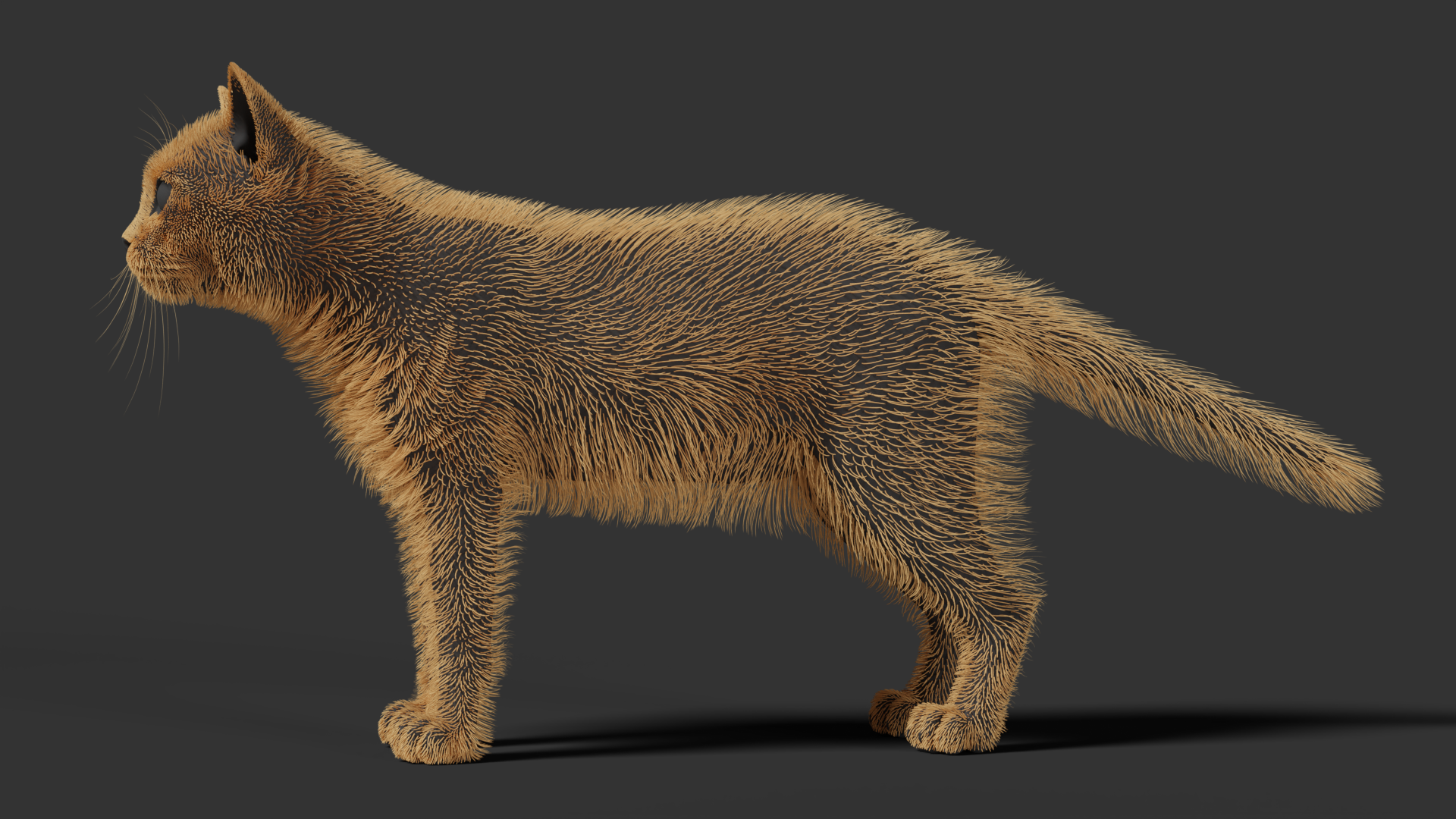
Before we start grooming the hair, let me first show you the workspace layout for this project. I recommend a similar layout to make the workflow more efficient.
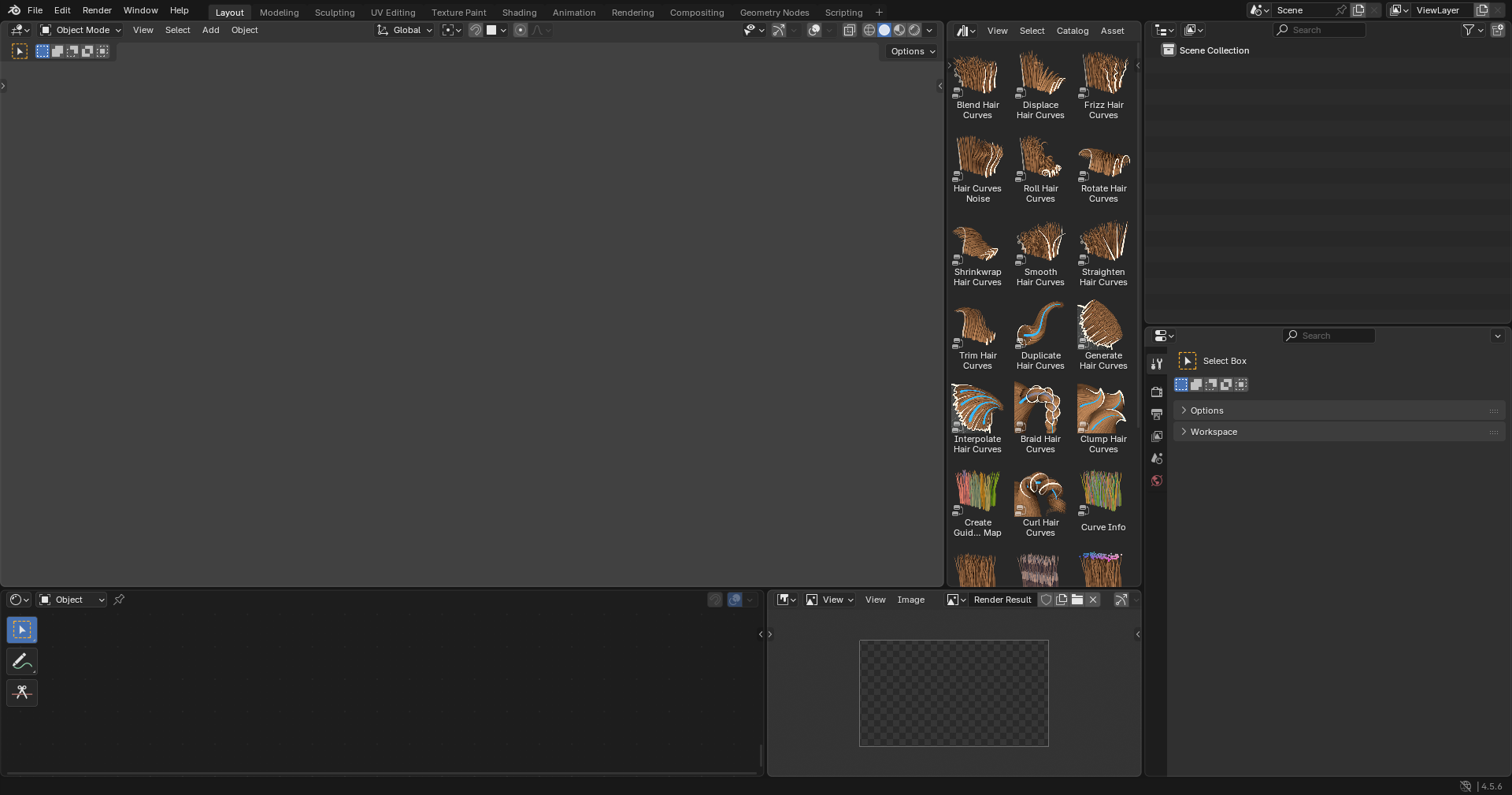
Before creating the actual shapes, we first need to divide the hair into different regions.
The Hair Curves system provides a much richer set of modifiers, so many variations can be created directly with modifiers. This means we don't need to create as many separate hair layers as we would with the legacy hair system. A few well-designed large regions are enough to produce a wide range of hair shapes.
For this project, the hair is divided into two regions: the head and the body.
The hair on these two areas differs significantly in terms of shape, density, and thickness, so separate regions make later adjustments much easier.
Technically, it would also be possible to create the entire coat as a single hair layer. However, in practice, we'd need to stack a large number of modifiers to control density, thickness, and shape separately. This would make the project more complicated, slow down viewport updates, and make later adjustments and management more difficult.
So from both a production-efficiency and project-maintenance perspective, dividing the air into large regions is a more practical approach.
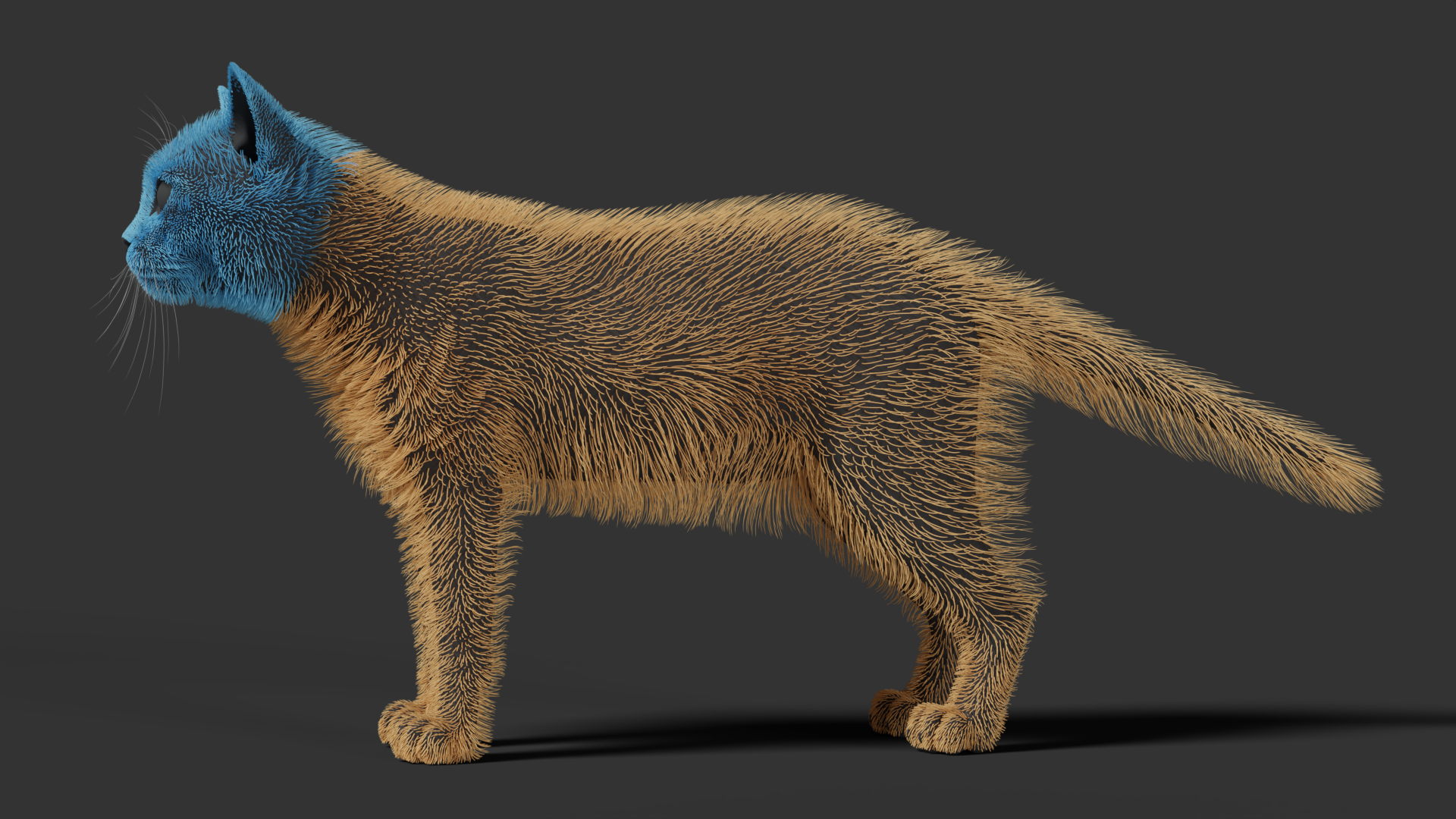
There are two ways to divide the hair into regions: textures or vertex groups. For this project, we'll use vertex groups.
Vertex groups are simple to create and easy to adjust. Since they're stored as part of the model data, they're also less likely to suffer from data-loss issues.
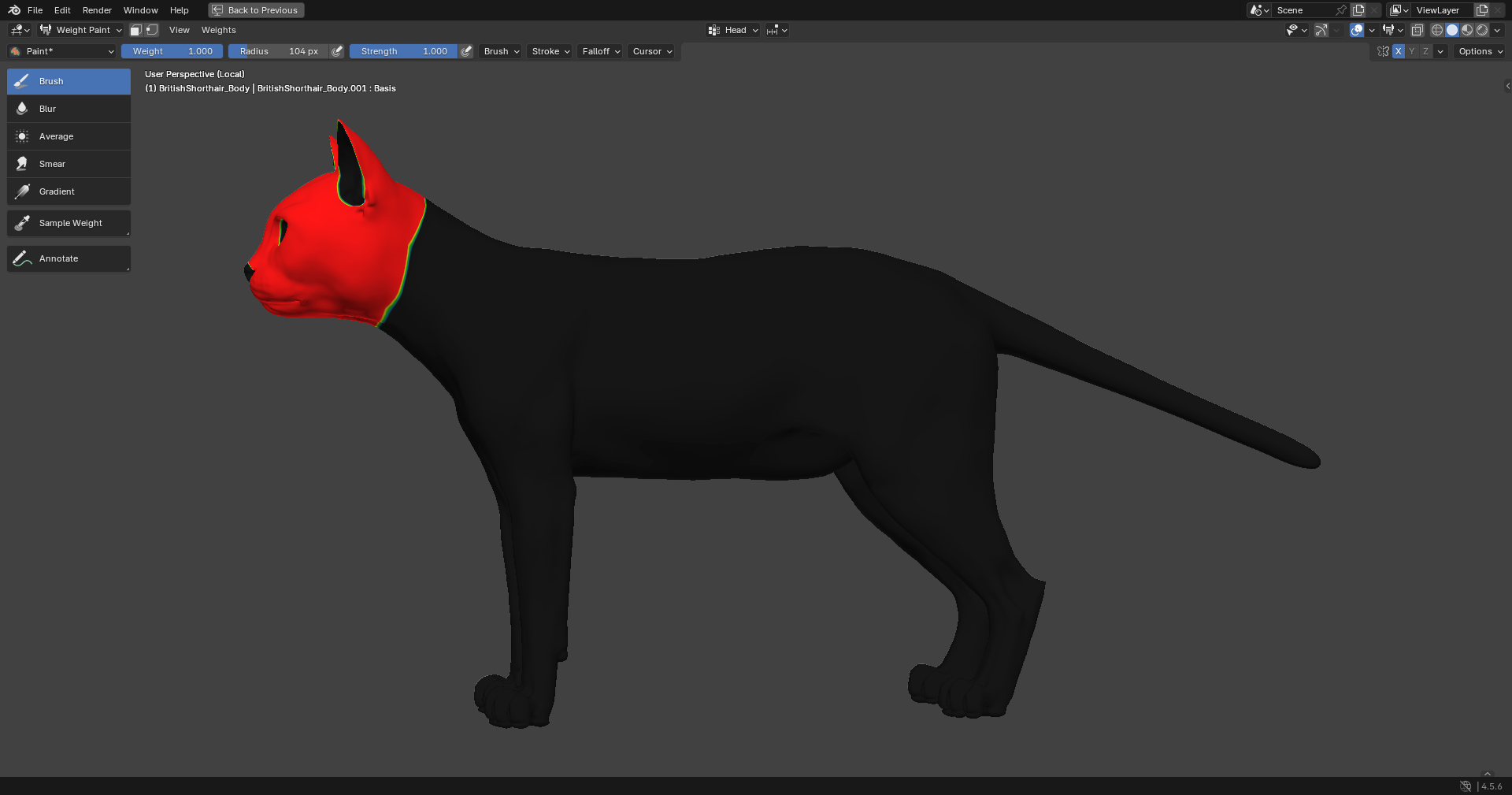
When dividing the regions, it's a good idea to follow the structure of the model. For example, we can use the structure behind the cheek area as the boundary between the head and body. This creates a more natural transition between the two hair regions.
Head Weight:
Body Weight:
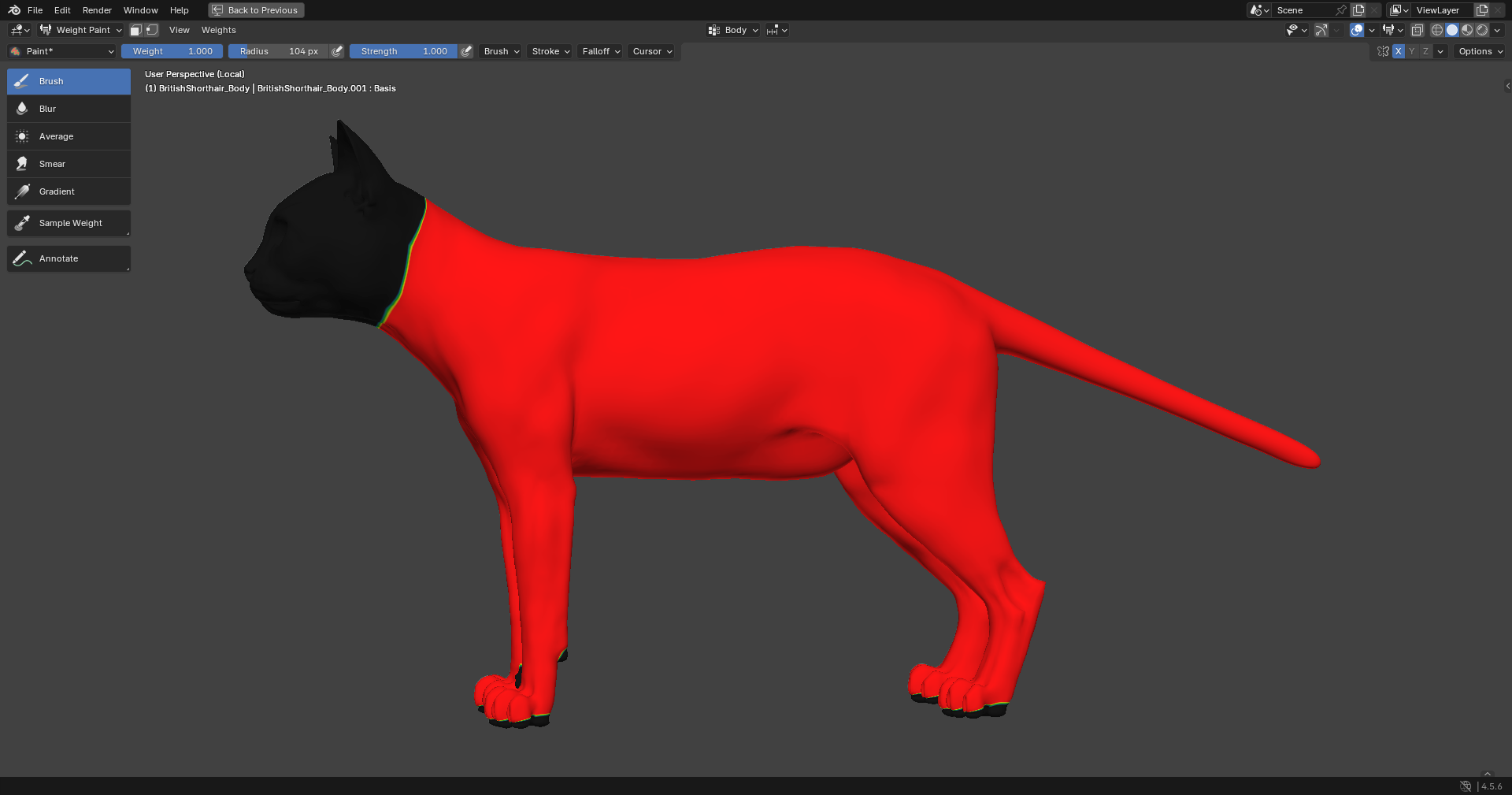
Once the hair has been divided into regions, don't start grooming the shape just yet. First, we need to establish the basic hair parameters, including thickness and density.
For the hair thickness, it's recommended to refer to real-world data from AI tools or other relevant resources, and then adjust the value slightly according to the final visual result. This allows us to balance physical accuracy with artistic presentation.
According to the reference data, we can set the hair radius to 0.00005 m.
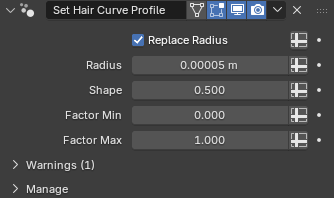
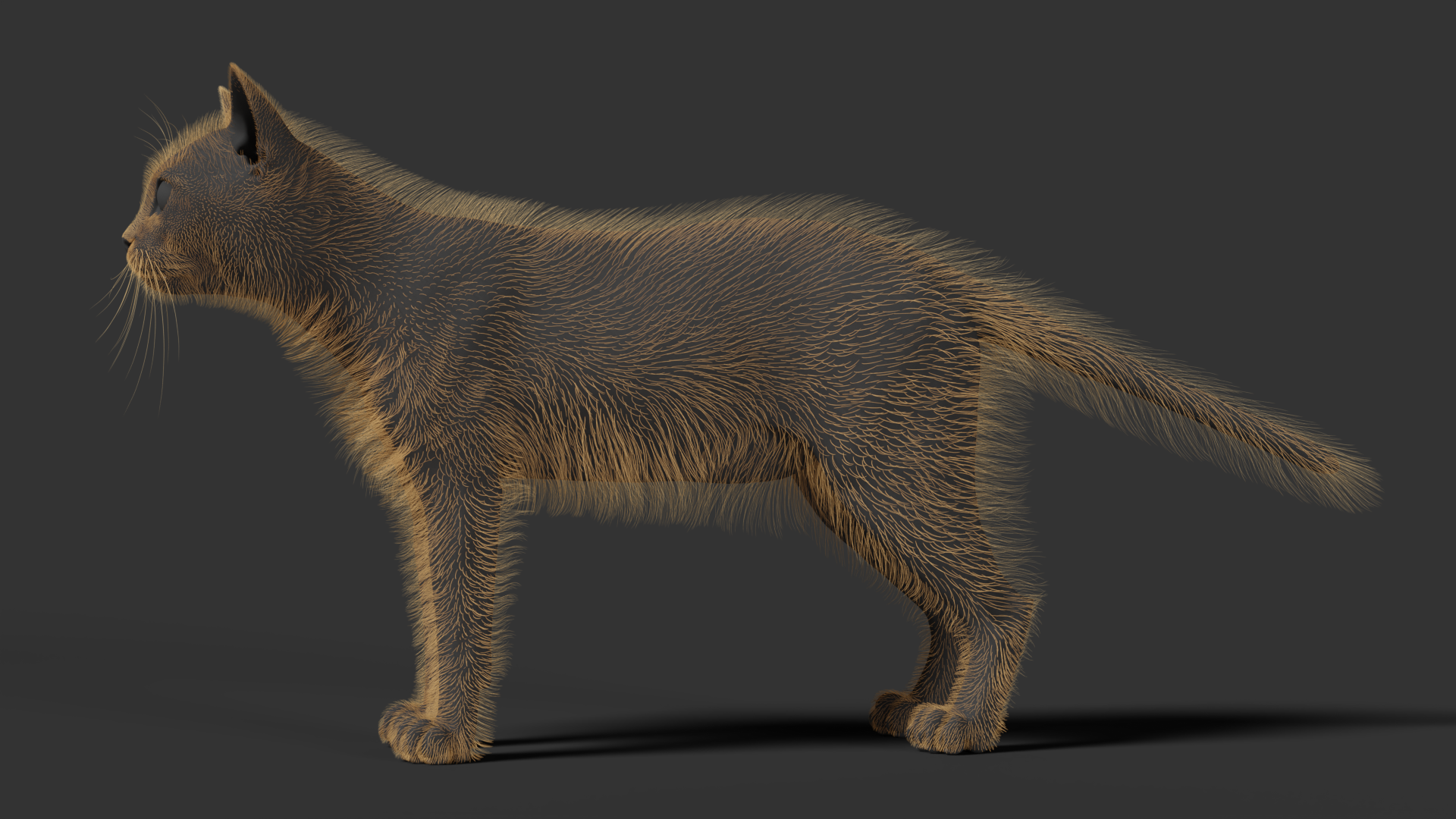
Next, let's set the number of hairs.
In the new hair system, hair is also added as simple and interpolated ones. For an animal character that needs hair covering the entire body, I recommend using the interpolated approach.
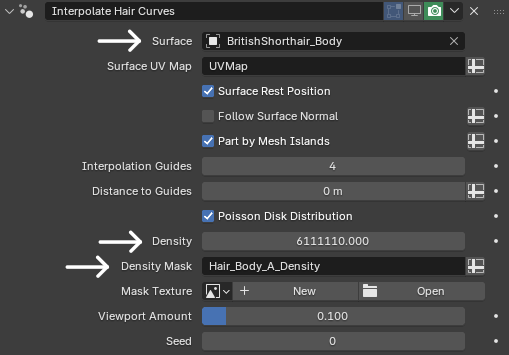
We can add an Interpolate Hair Curves modifier. After adding the modifier, the Surface needs to be assigned to the model where the hair grows. Then assign the corresponding body vertex group.
For the hair density, we only need to establish the approximate overall amount at this stage. There's no need to fine-tune it to the final value yet, because we'll continue adjusting it as the grooming progresses.
For this example, we can set the hair density to 6111110.
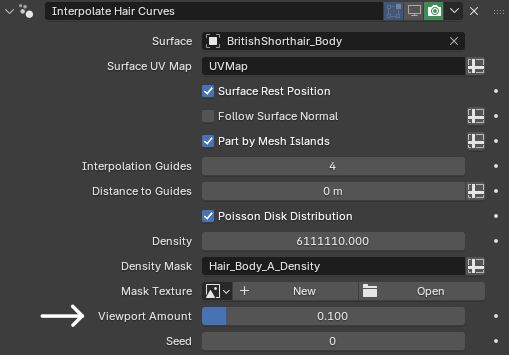
Keep in mind that too many hairs can significantly reduce viewport performance. During production, it's therefore recommended to lower the Viewport Amount to reduce the number of hairs displayed in the viewport. This keeps the workflow responsive without affecting the final render.
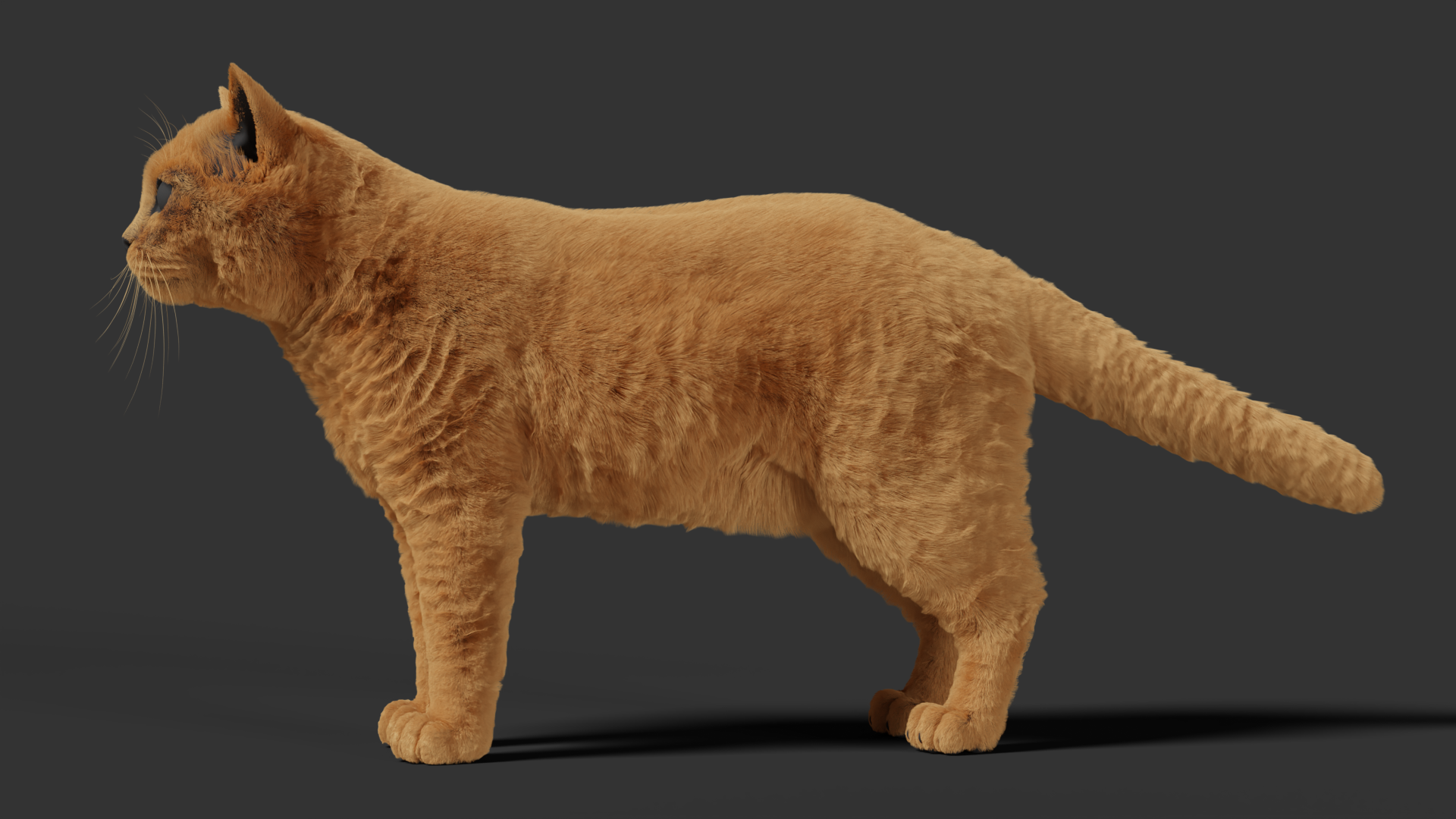
Once the parameters are set, let's take a look at the render result.
Body Hair Grooming
Now that the hair has been divided into regions, let's start with the body hair.
First, add a Clump modifier.
Clumping is the foundation of the overall hair shape. The subsequent curl and frizz effects are built on top of the clumps, so it's a good idea to establish the clumping first.
As we analyzed earlier, British Shorthair fur forms a large number of small clumps. However, the clumping intensity is relatively low, and the tips are not too sharp. So our goal here is to create a large number of clumps with moderate intensity.
By default, the Clump modifier generates clumps based on the number of guide curves.
When there are only a small number of guides, the number of clumps will also be limited. To create a richer distribution of clumps, we can disable Existing Guide Map and use Guide Distance to control the number of clumps instead.
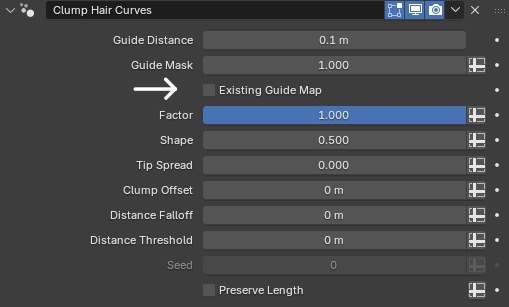
For this example, we'll set Guide Distance to 0.0025 m.
The smaller the value, the denser the clumps. The larger the value, the more spread out they become.

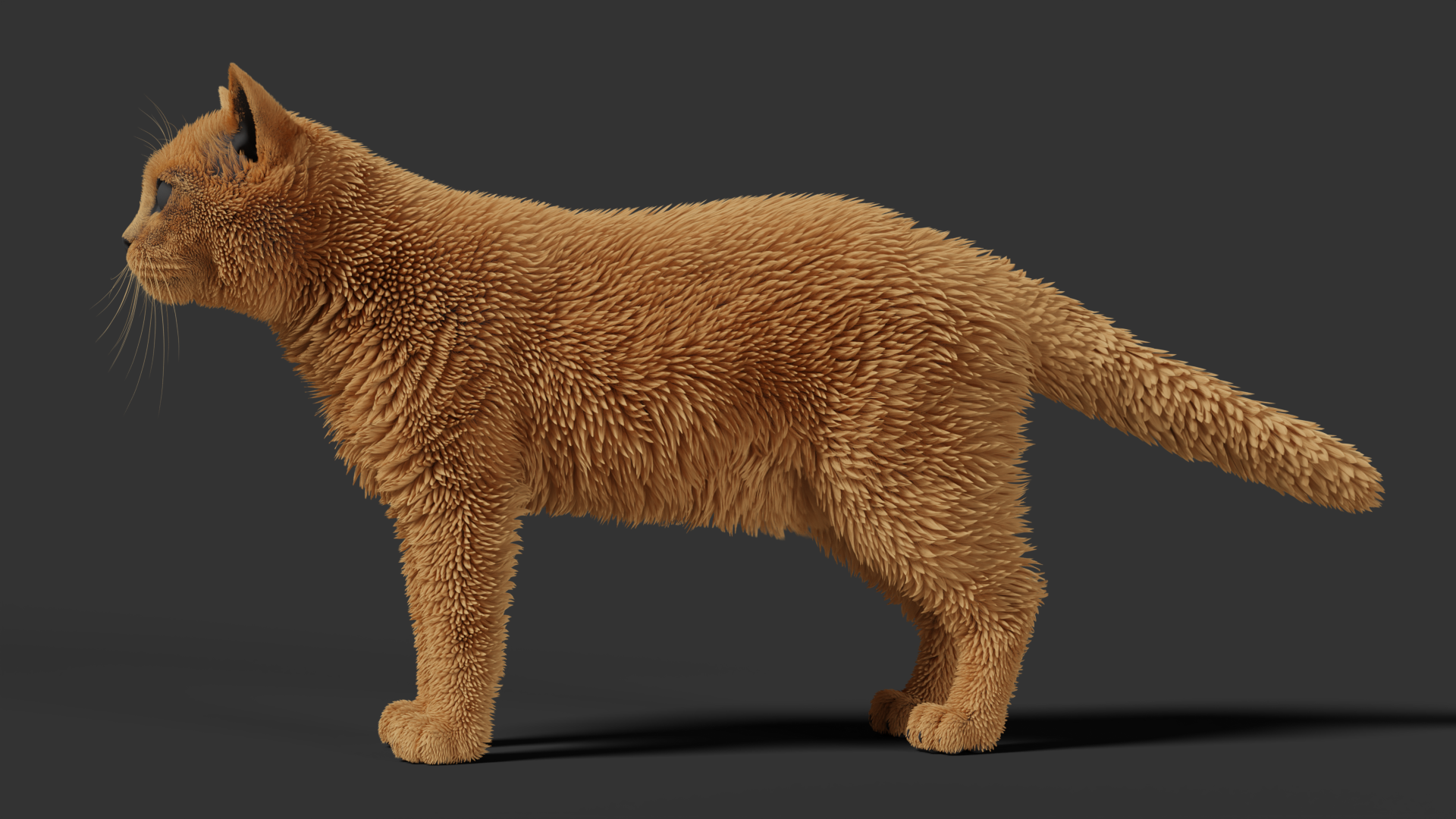
With the parameters set, let's take a look at the render result.
The new Hair Curves Clump modifier is much more flexible than the one in the legacy hair system. It can not only generate clumps based on guides, but also directly control the distribution density. This greatly reduces the amount of guides we need to add manually.
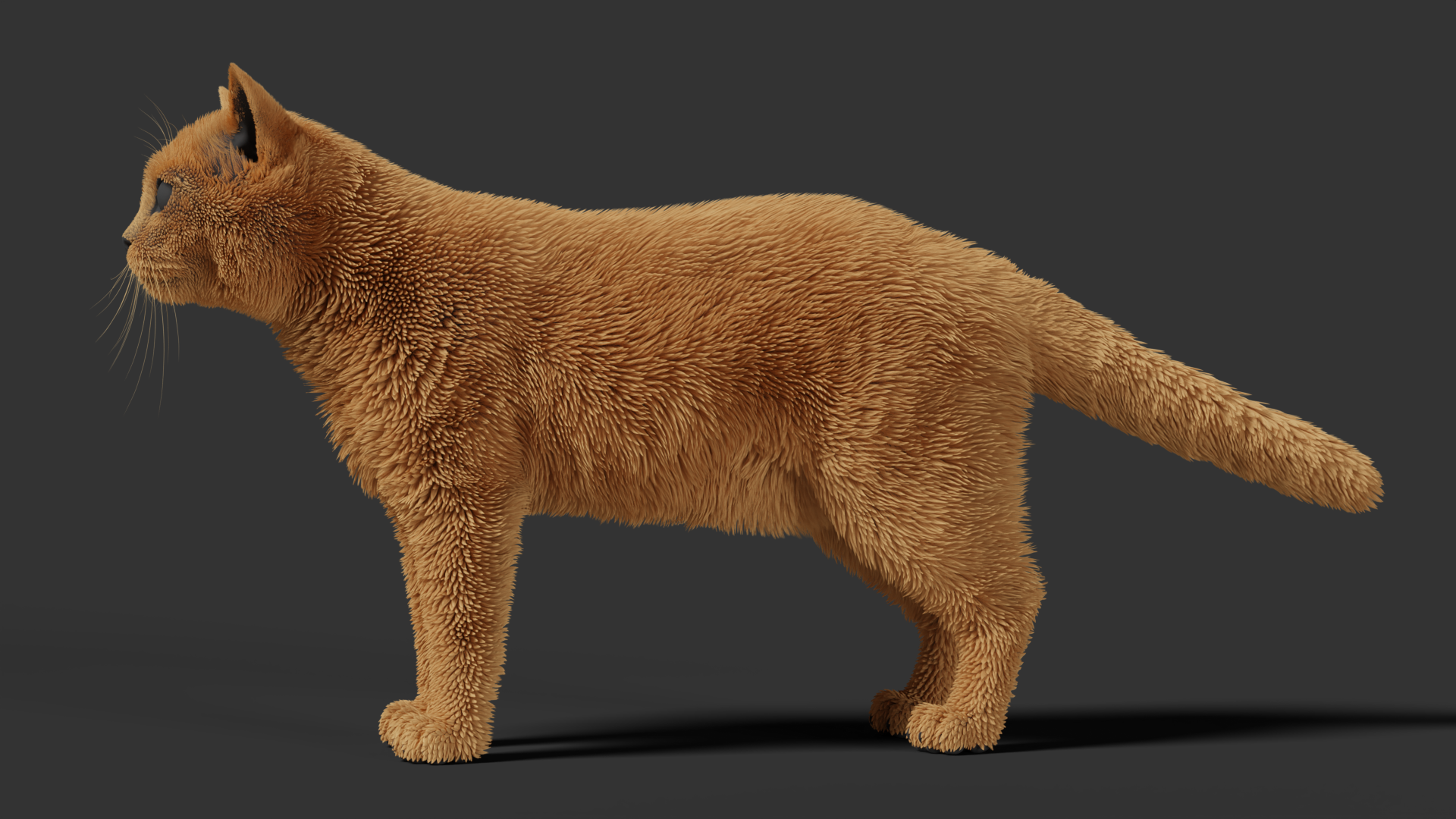
After setting up the Clump modifier, don't worry if the clumps look slightly too sharp. Once we add noise later, this effect will naturally be softened. It's more accurate to make the final adjustment after all the major modifiers are in place.
After the Clump modifier, let's add a Curl modifier to give the clumps a slight bend and prevent them from looking too straight and rigid.
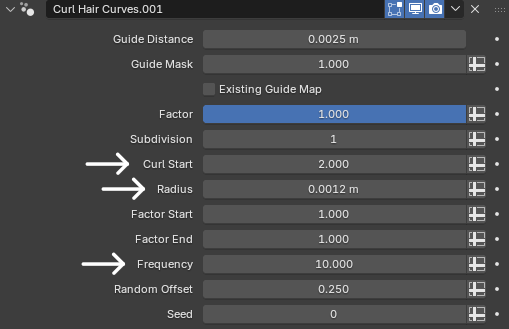
First, reduce the Radius to 0.0012 m. We only want a subtle curl here—just enough to break up the regularity of the clumps without destroying the overall shape.
Because the curl can affect the hair roots, it's recommended to set Curl Start to 2, so the effect mainly affects the middle and lower sections of the hair. This keeps the result natural.
Next, set Frequency to 10 so that the effect becomes more noticeable. If Frequency and Radius are both low, the curl effect will be extremely weak.
Okay, let's take a look at the final result.
Wait… what happened?
This looks completely different from what I expected!
What I wanted was for each individual hair clump to be slightly bent, but instead we're getting large curls.
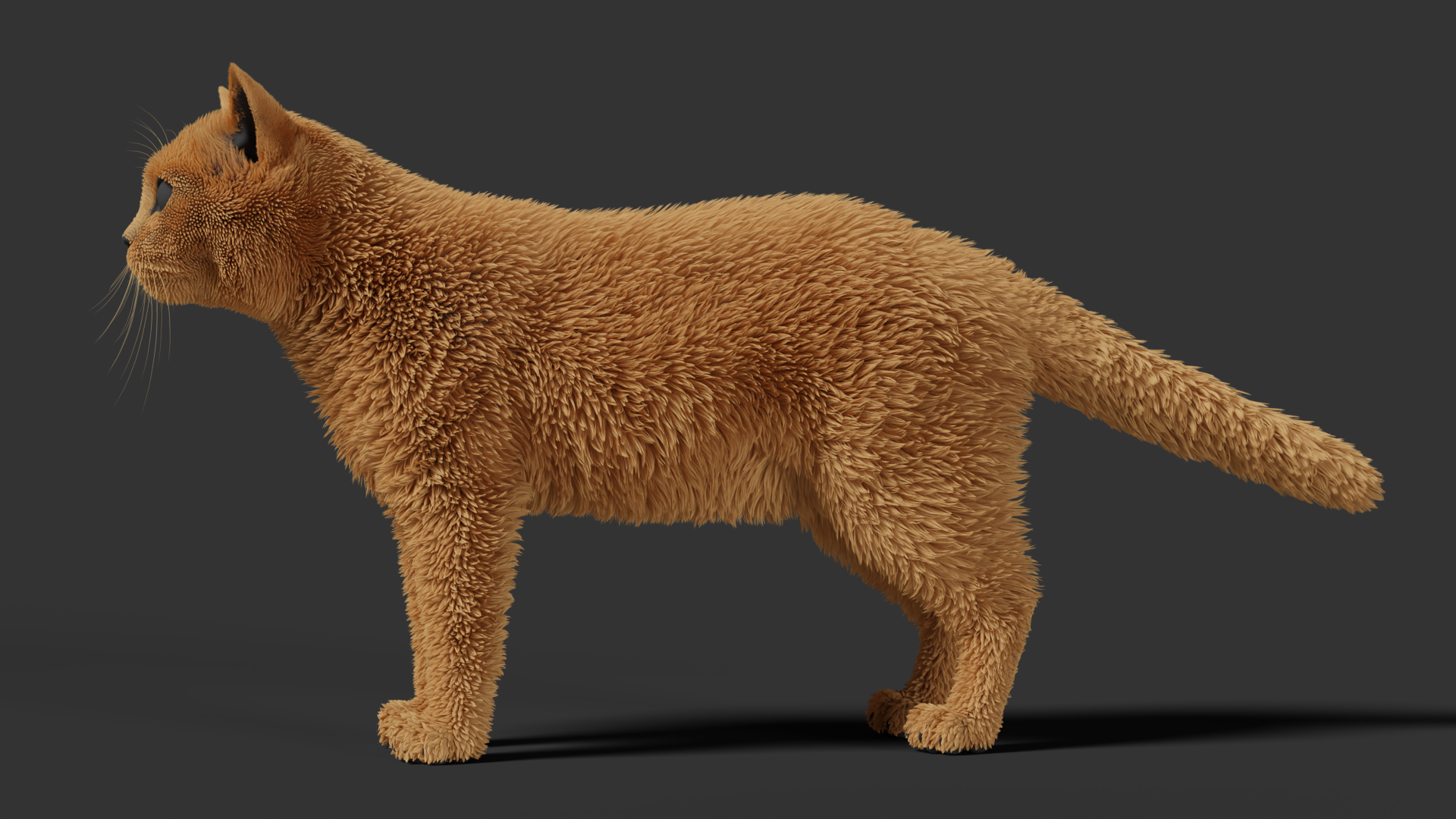
So what exactly caused this problem?
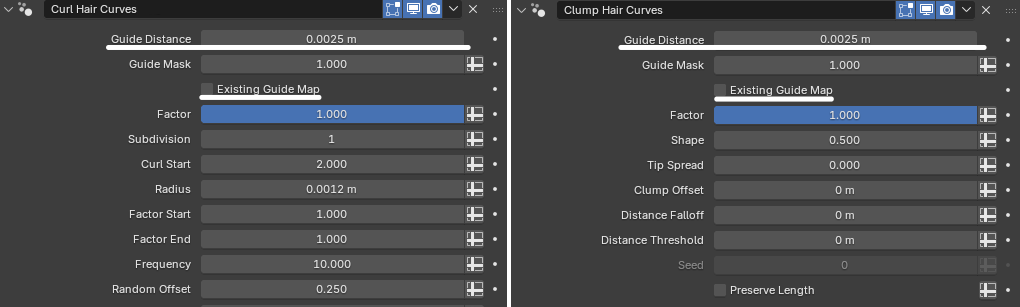
The main issue is Existing Guide Map.
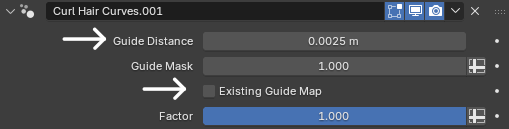
Just like Clump, Curl also uses the guide curves to control the hair effect by default. So here, we also need to disable Existing Guide Map.
In addition, the Guide Distance parameter needs to match the one used by the Clump modifier.
Only when these parameters are consistent will the final hair behave as expected.
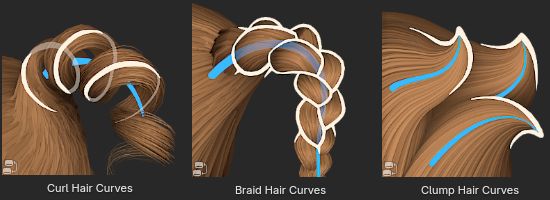
At this point, you might be wondering: "So which modifiers use guide curves by default?"
In fact, there are only a few:
Let's continue by matching the parameters of the Curl modifier to those of the Clump modifier.
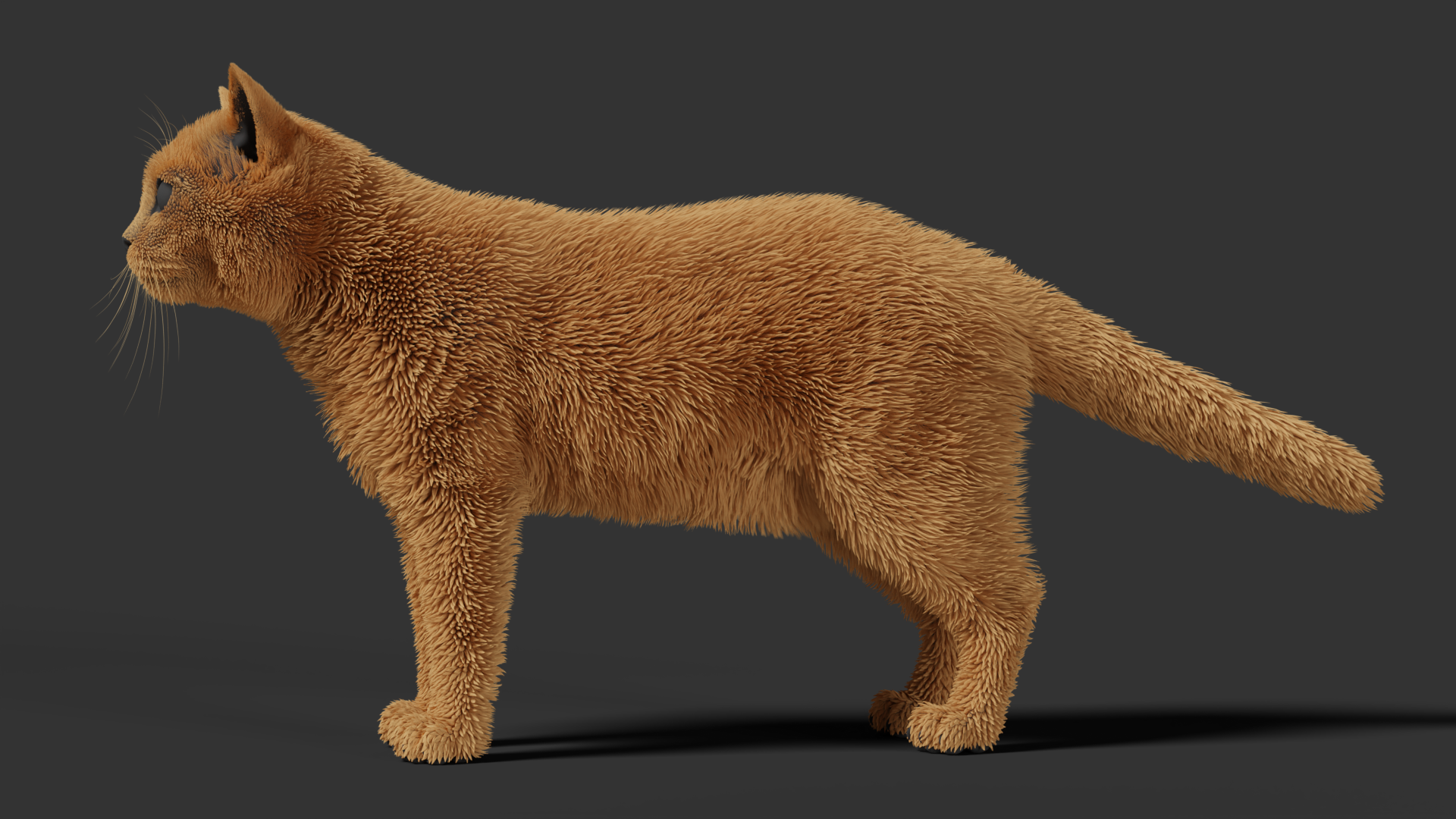
Now the parameters are set, let's check out the render result.
Now each individual hair clump is bent as desired.
Next, add a Frizz modifier to introduce random variation to individual hairs.
Real animal hair is never perfectly straight. The purpose of the Frizz modifier is to break up the overly uniform arrangement within each clump and make the hair look more natural.
The default Frizz intensity is usually too high, so for this example we'll reduce Distance to 0.0007 m, keeping only a subtle amount of random variation.
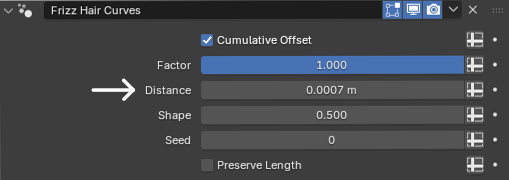
Once we set the parameters, let's take a look at the render result.
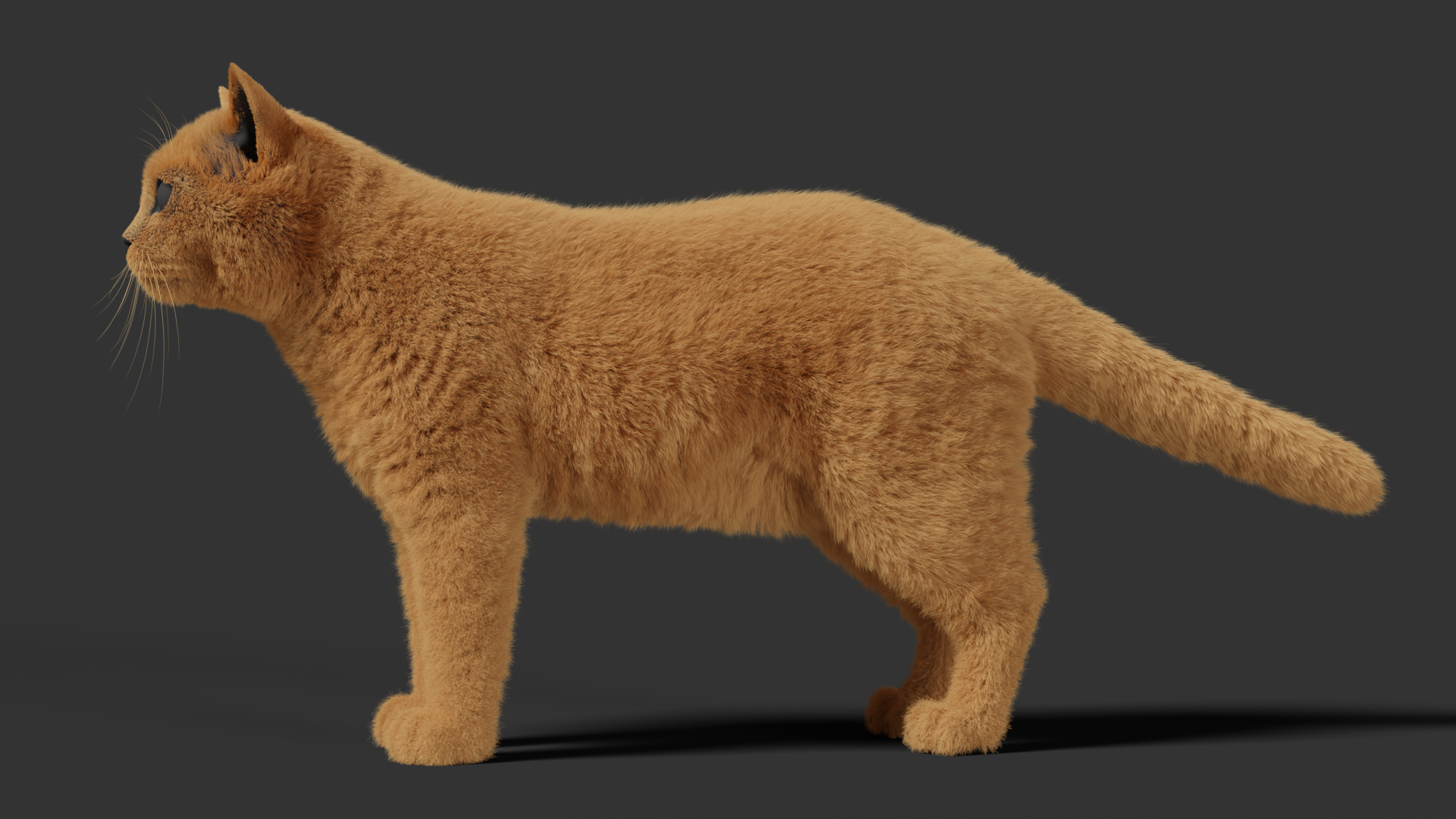
After adding Frizz, the shard appearance of the clumps will be reduced slightly.
If you notice that clumping is too obvious in short-haired areas such as the legs, you can use weights to control the influence of Clump and reduce the clump intensity in those areas. This creates a smoother and more natural transition.
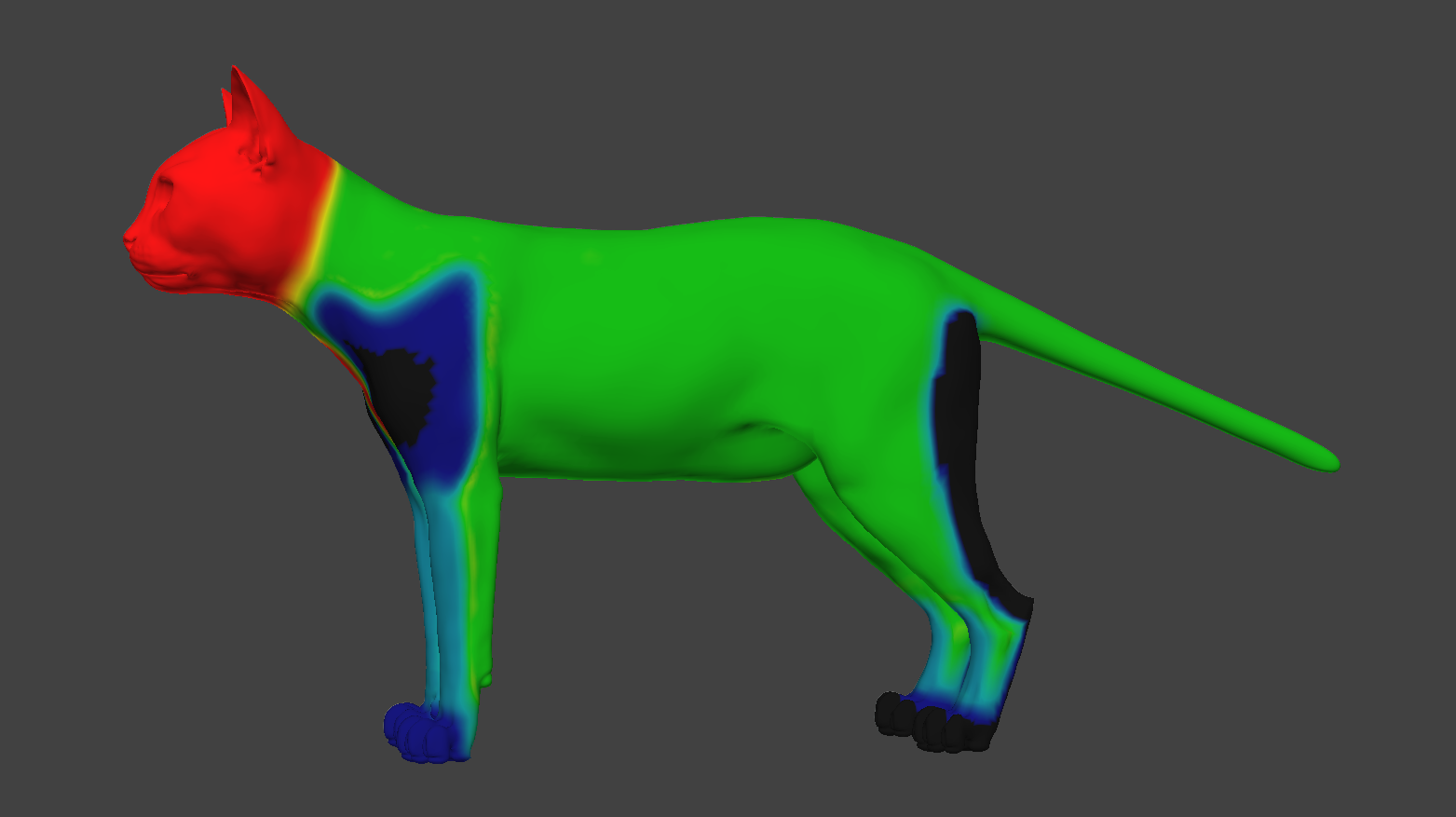
After setting the parameters, we can take a look at the render.
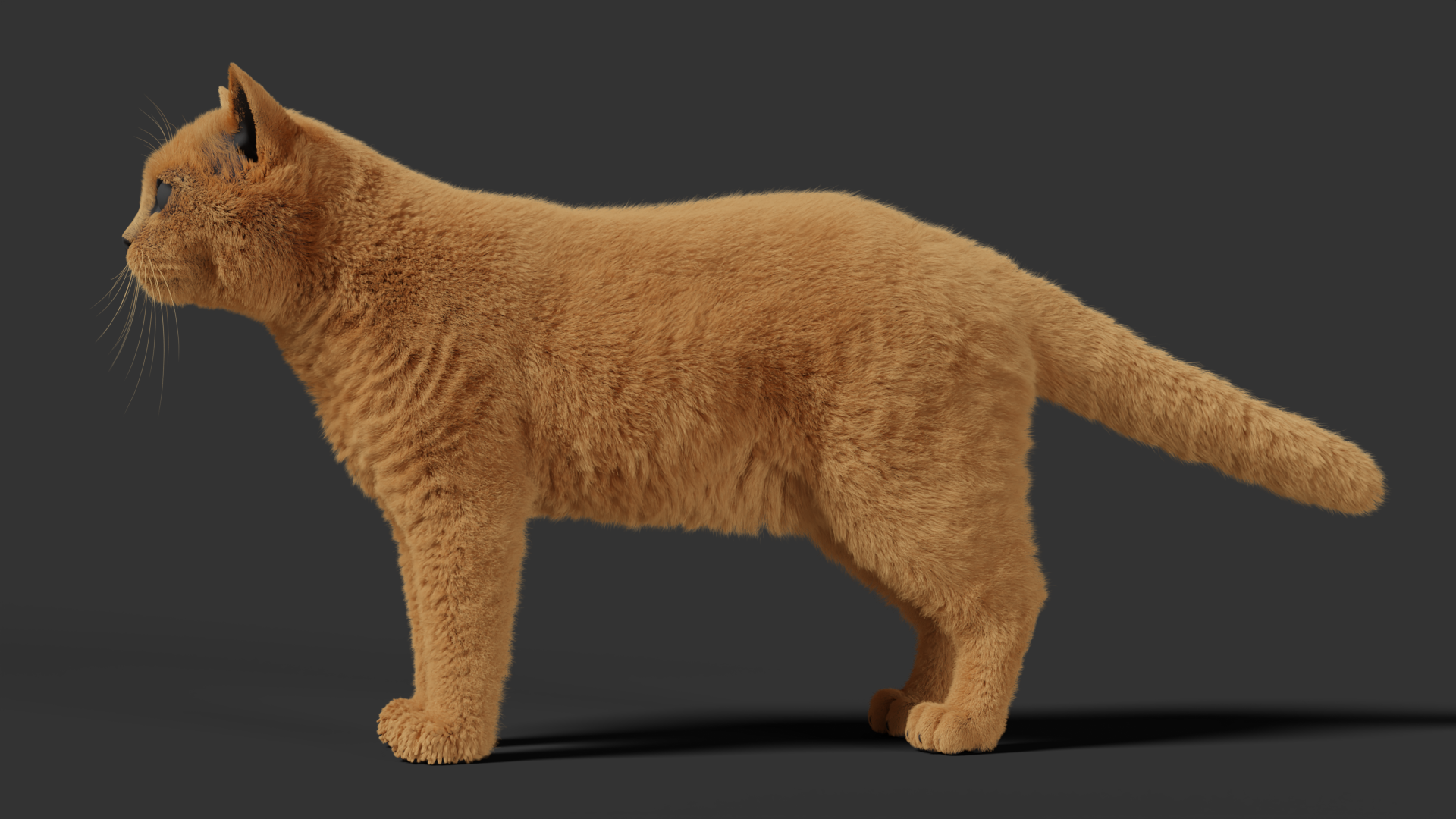
After the basic grooming is complete, add a Trim modifier to introduce random variation in hair length.
If all the hairs have exactly the same length, the silhouette of the hair will look too uniform and clean, which doesn't match the soft, fluffy edges of real animal hair. We therefore need to use Trim to introduce some variation in length.
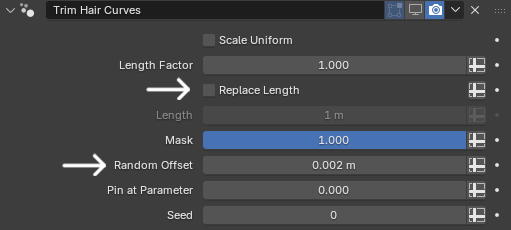
After adding Trim, first disable Replace Length, then use Random Offset to control the variation in hair length.
British Shorthair fur is relatively thick overall, so the random variation shouldn't be too strong. For this example, we'll set Random Offset to 0.002 m.
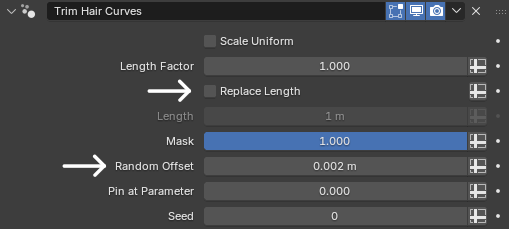
And now the parameters are set, let's take a look at the result.
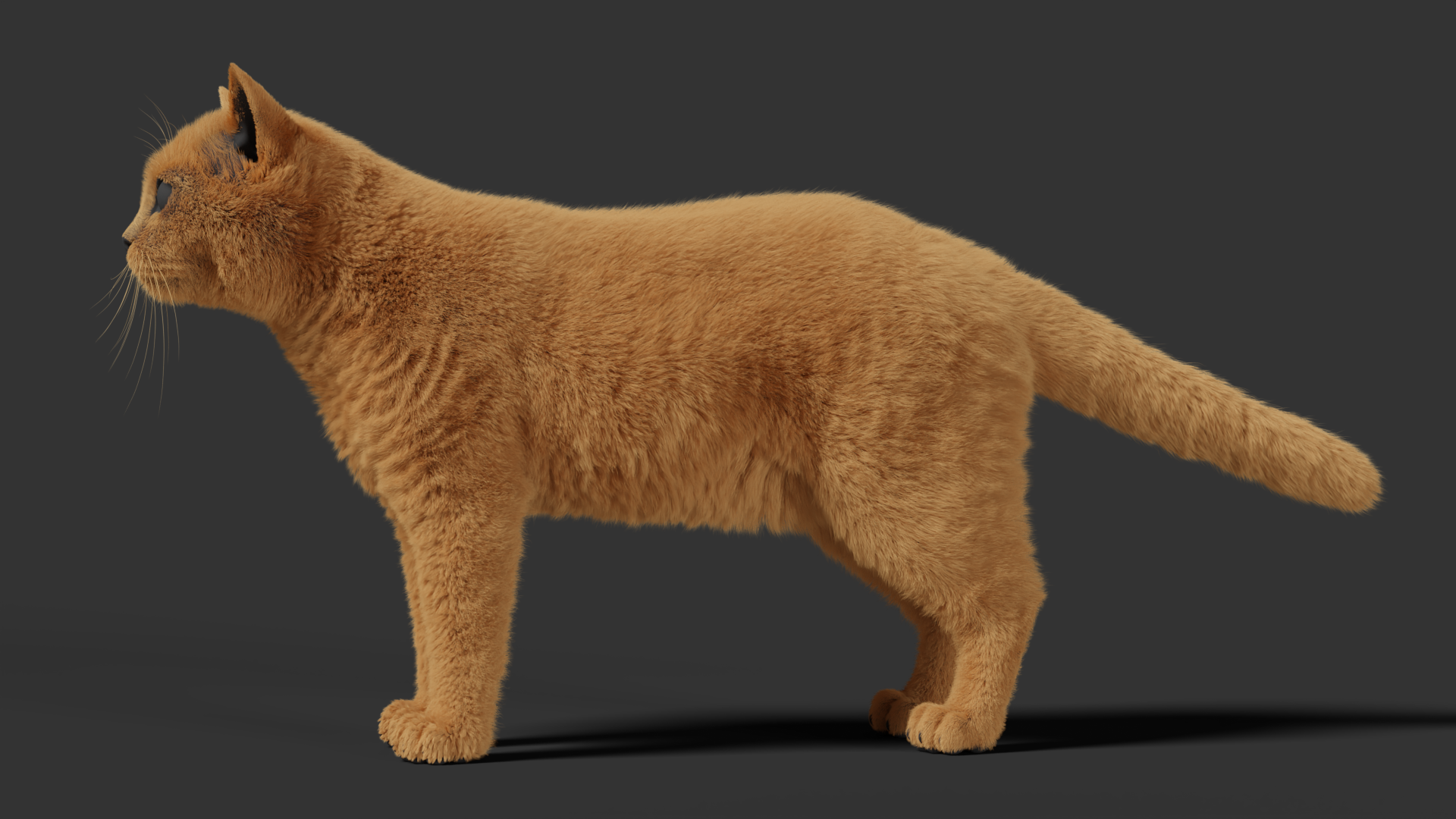
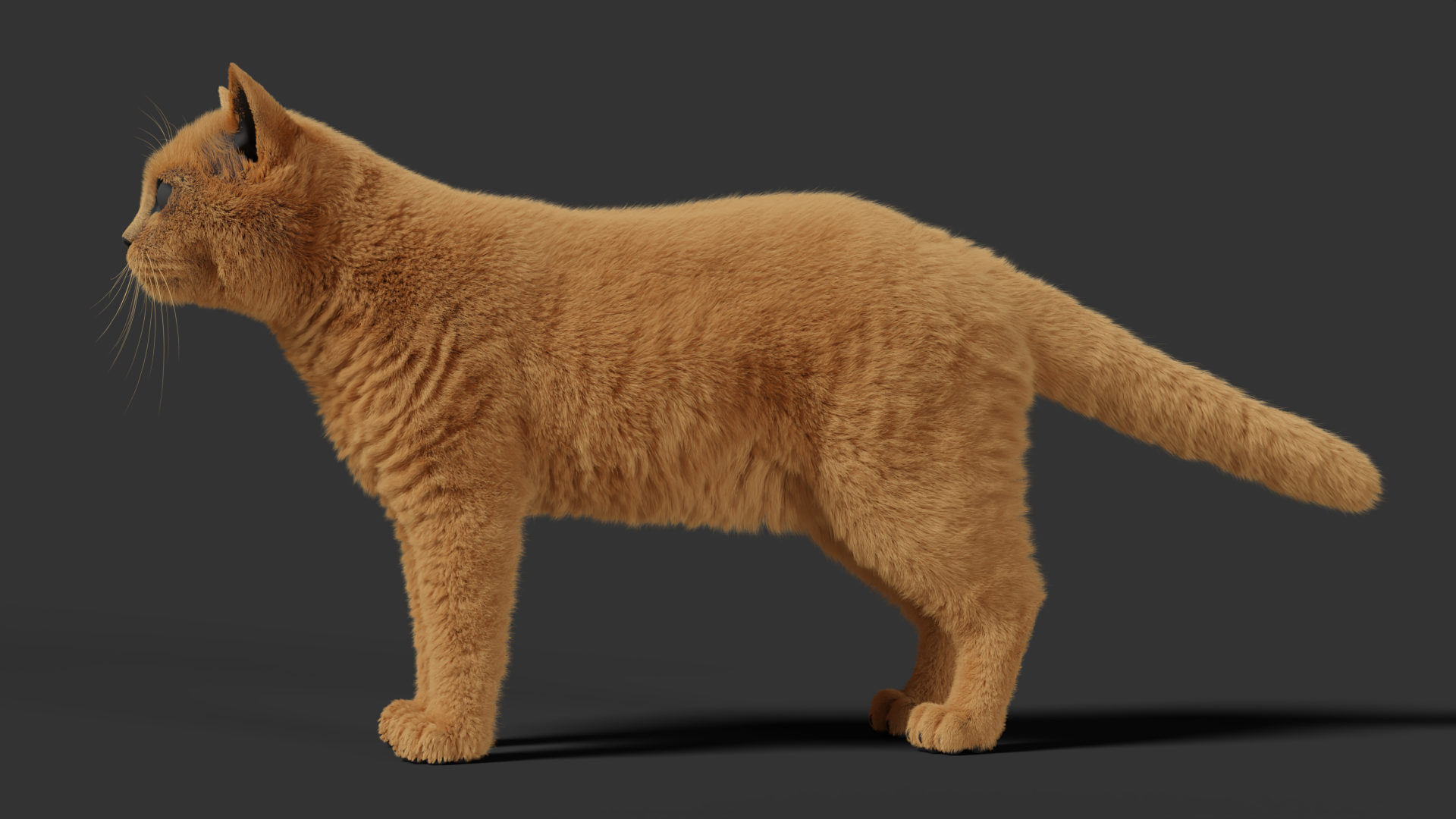
Because British Shorthair fur is dense, there are visible splits in the areas where the hair is longer and frequently stretched, such as the neck, belly, and hind legs.
These splits can also be created using Trim, but I recommend controlling them with a texture rather than weights.
The reason is that weights are limited by the polygons of the model. On a low-poly mesh, it's difficult to paint fine hair splits accurately. A texture gives us much more precise and natural control.
When painting the hair splits, keep the following in mind:
- Keep the distribution random and avoid evenly spaced patterns.
- Vary the length of the splits noticeably.
- Taper the ends of the splits so they transition into a diamond-like shape.
- Add some curvature to the splits instead of keeping them all straight.
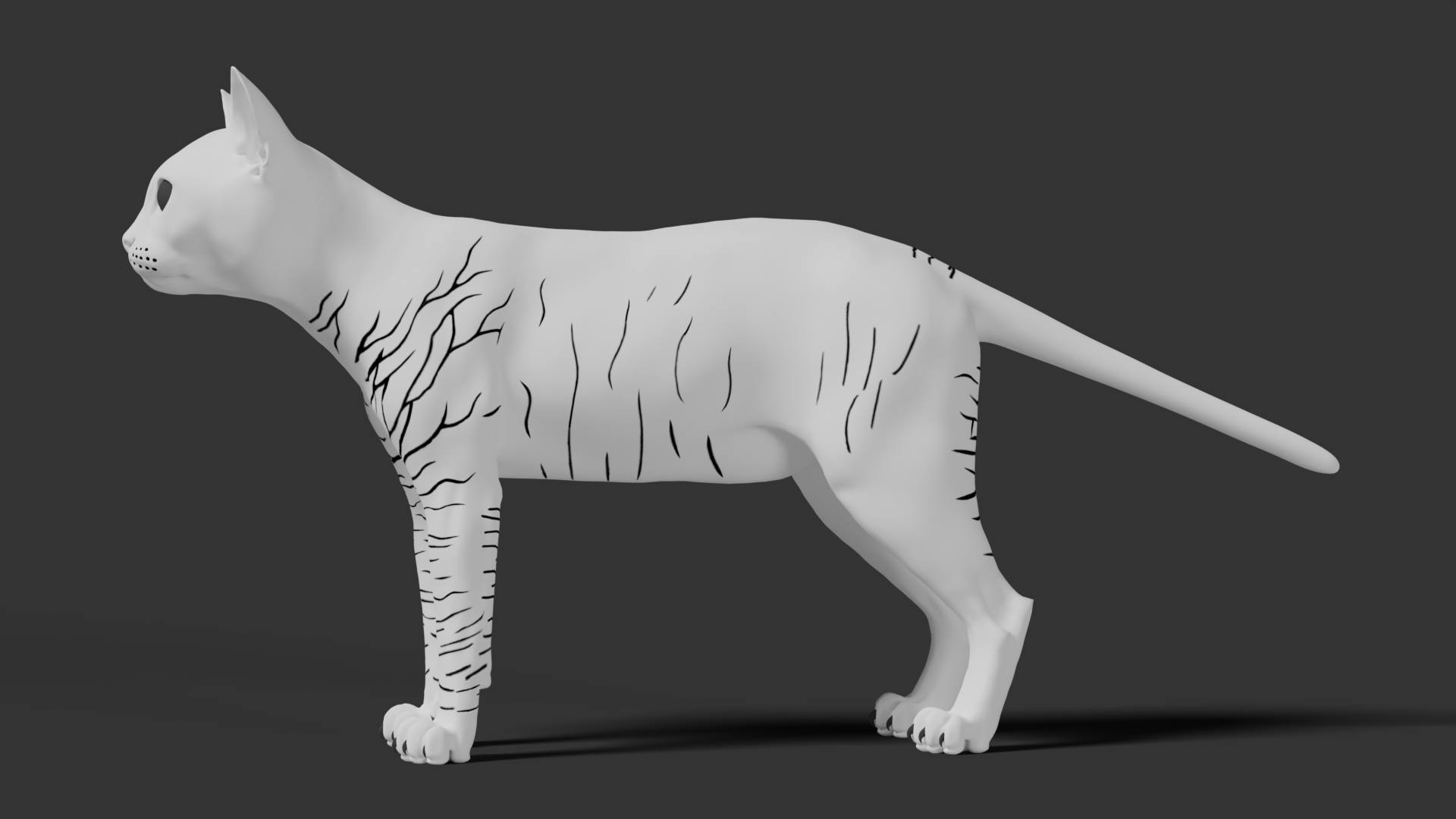
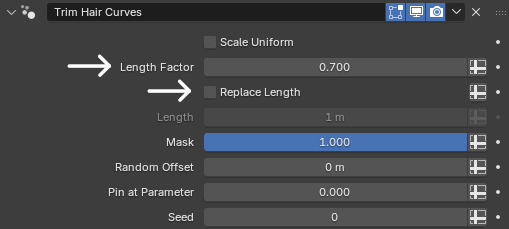
Once the texture has been painted, we need to assign it to the length modifier. However, the default parameters won't recognize the texture, so we need to go to the Geometry Nodes Editor and manually wire the texture in.
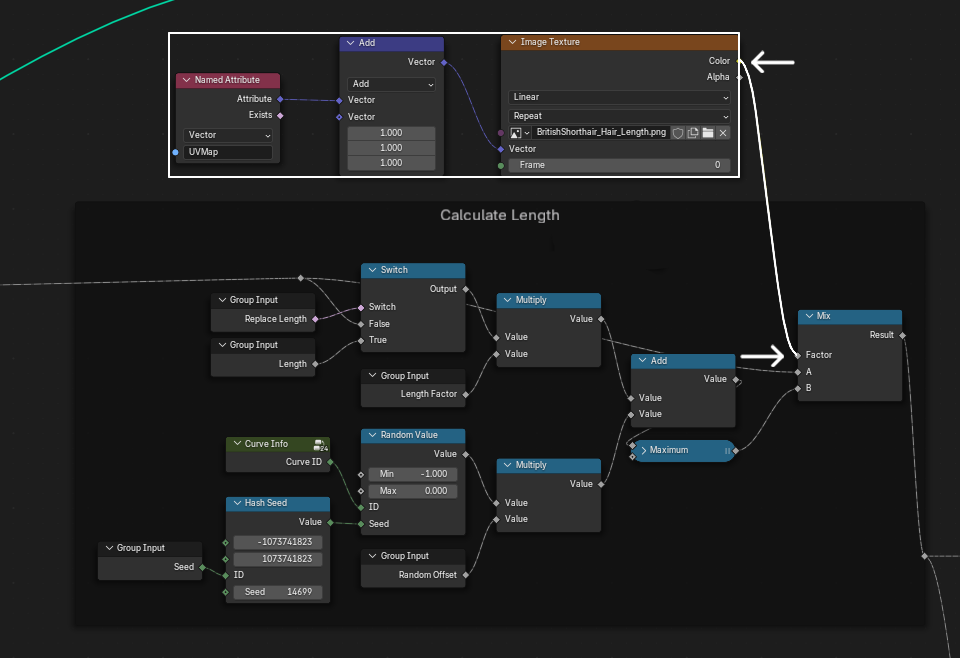
For this example, we'll set Length Factor to 0.7, which produces a relatively natural hair-spliting effect.
The smaller the value, the more pronounced the splits will be.
Once the parameters are set, let's take a look at the render result.
Head Hair Grooming
Next, let's work on the head hair.
The overall workflow is similar to the body hair, but because the head is visually more dependent on fluffiness, dispersion, and layered variation, some of the parameters need to be adjusted specifically for this area.
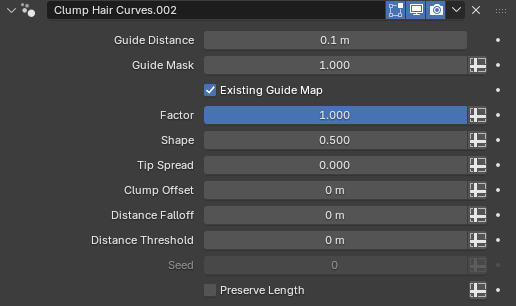
First, add a Clump modifier.
Compared with the body hair, the head has fewer visible clumps, so there's no need to adjust the clump count again. We can simply keep the default behavior of generating clumps from the guide curves.
Once the parameters are set, let's take a look at the render result.
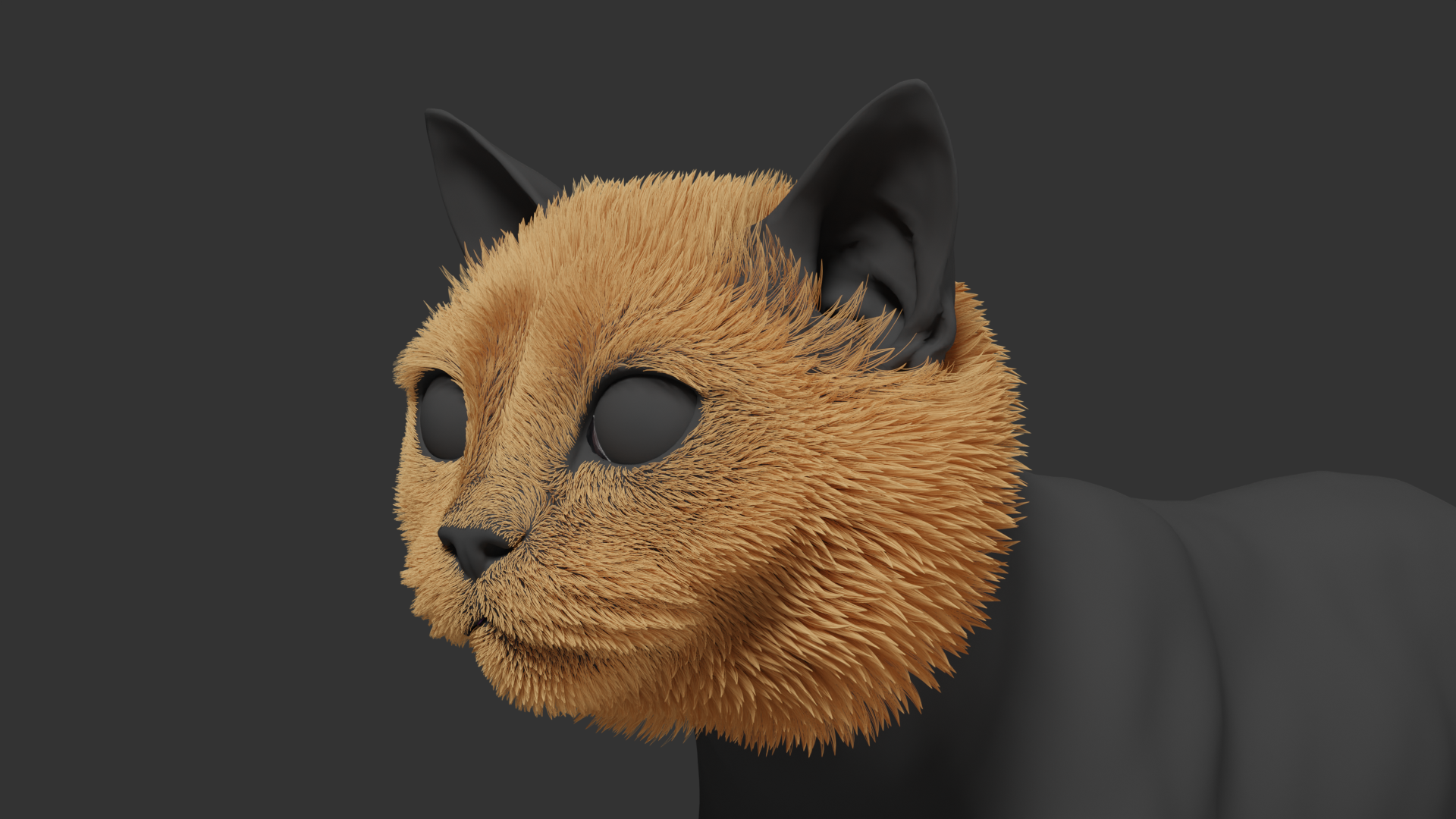
After completing the Clump, we can start creating the characteristic dispersed look of the head hair.
Unlike the body hair, the head doesn't need obvious clumps. Instead, the hair should appear naturally separated while still retaining a subtle amount of irregular variation.
Here we'll use the Hair Curves Noise modifier to create large-scale random variation.
By default, the effect is quite strong, so we can first reduce the distance to control it. Set Distance to 0.0001 m.
This modifier is mainly used to create broad waves and random variation. By increasing Scale to 10000, we can create an effect similar to the tip variation found in legacy hair systems, giving the hair a naturally dispersed appearance.
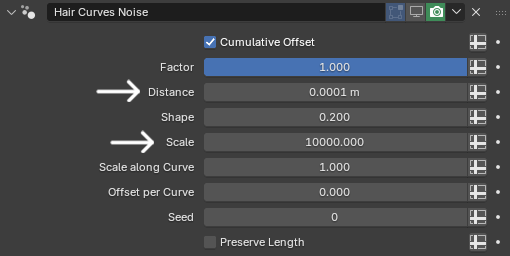
After adjusting the parameters, we can achieve a much more natural distribution of the head hair.
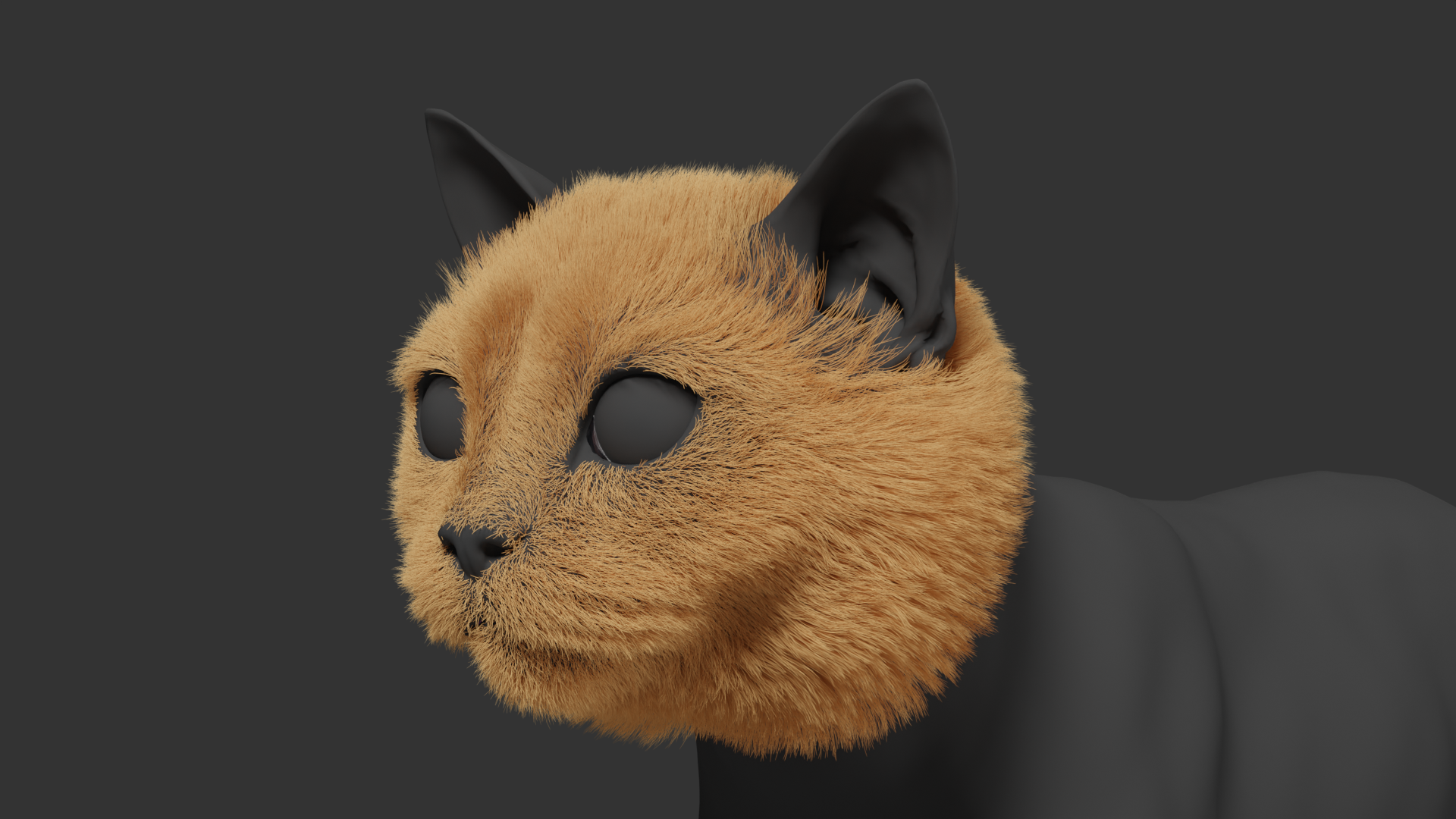
However, this effect doesn't need to affect every area.
Short-haired areas are generally denser and don't need as much random variation. We can therefore use weights to control the intensity of Hair Curves Noise, reducing its strength in short-haired areas while keeping the default effect on longer hair.
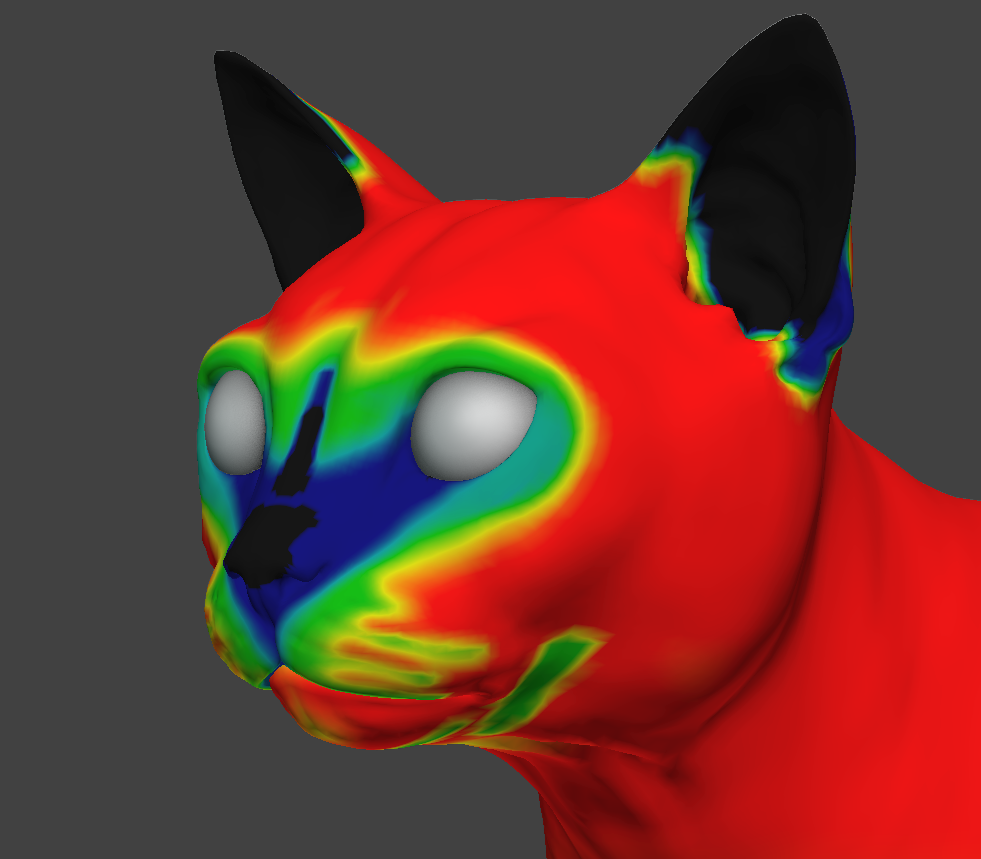
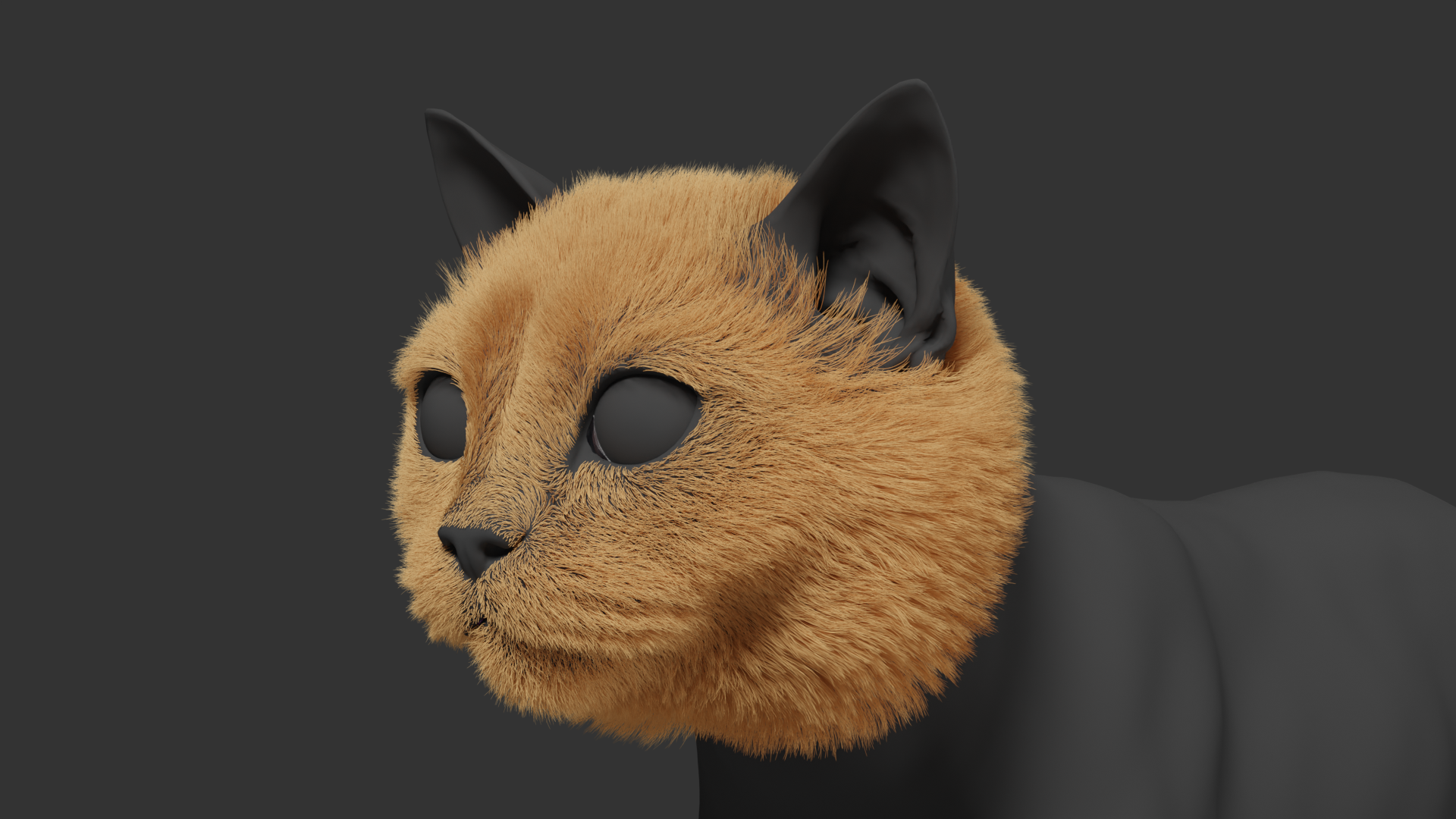
Hair Curves Noise mainly affects the overall dispersion of the hair, using it alone makes the variation somewhat uniform.
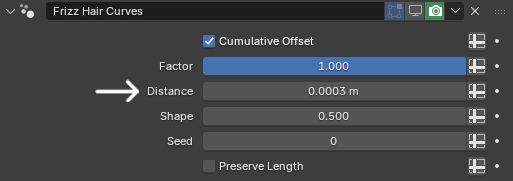
We can therefore add a Frizz modifier to introduce additional local randomness.
Real hair usually contains a significant amount of irregular variation. By combining Hair Curves Noise with Frizz, we can create both large-scale dispersion and small-scale random variation, resulting in a more natural overall appearance.
Since we only need a slight effect here, we can set Distance to 0.0003 m. This allows the two types of random variation to blend naturally without destroying the overall shape.
And the parameters are set now, we can look at the render result.
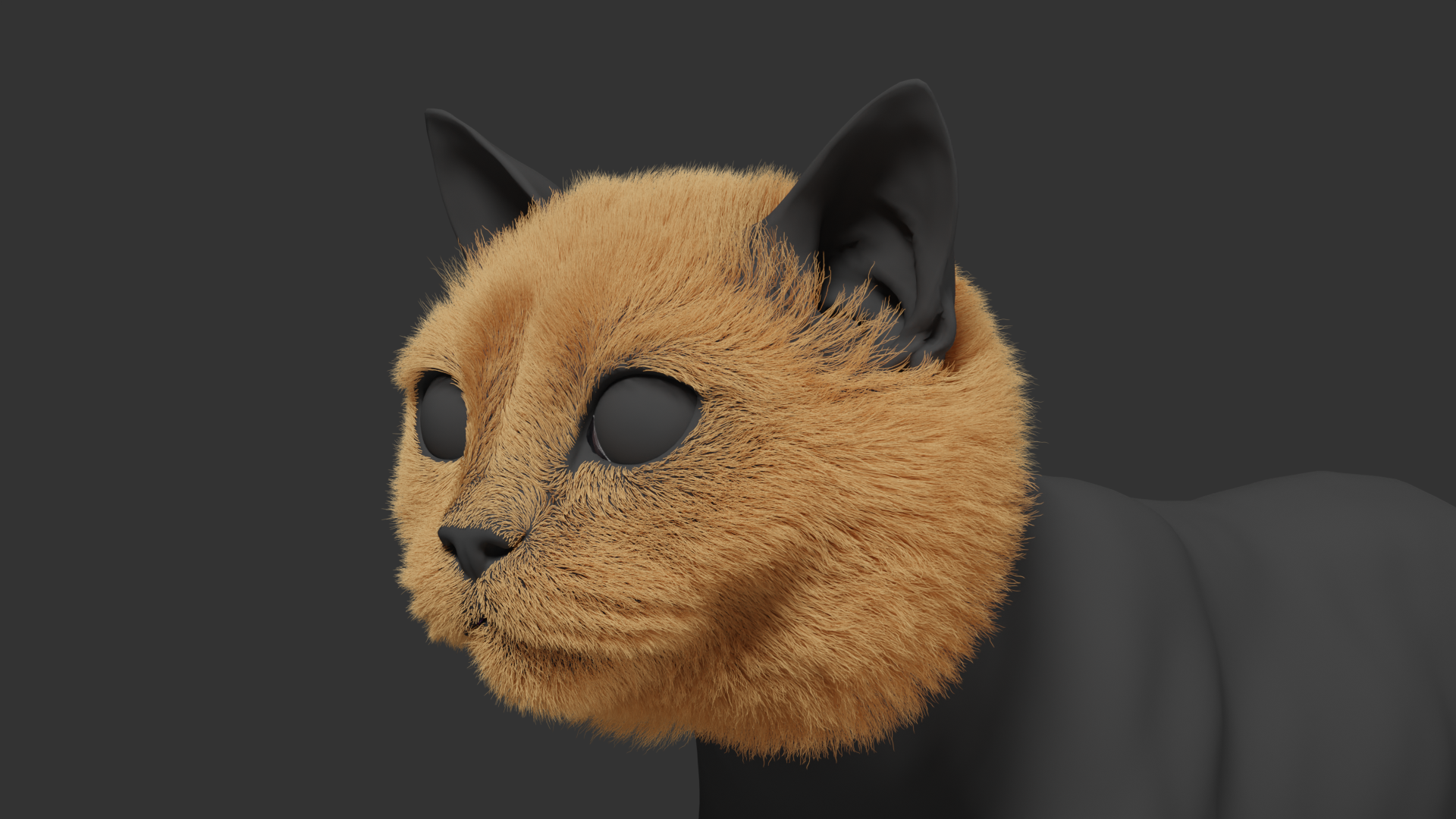
Next, add a Trim modifier to make the edges of the head hair more natural.
Just like the body hair, British Shorthair fur is relatively thick overall, especially around the cheeks, where the silhouette is rounded. So the random length variation shouldn't be too strong.
Set Random Offset to 0.002 m.
And don't forget to disable Replace Length first, otherwise we can run into unexpected results.
After we set the parameters, look at the render result now.
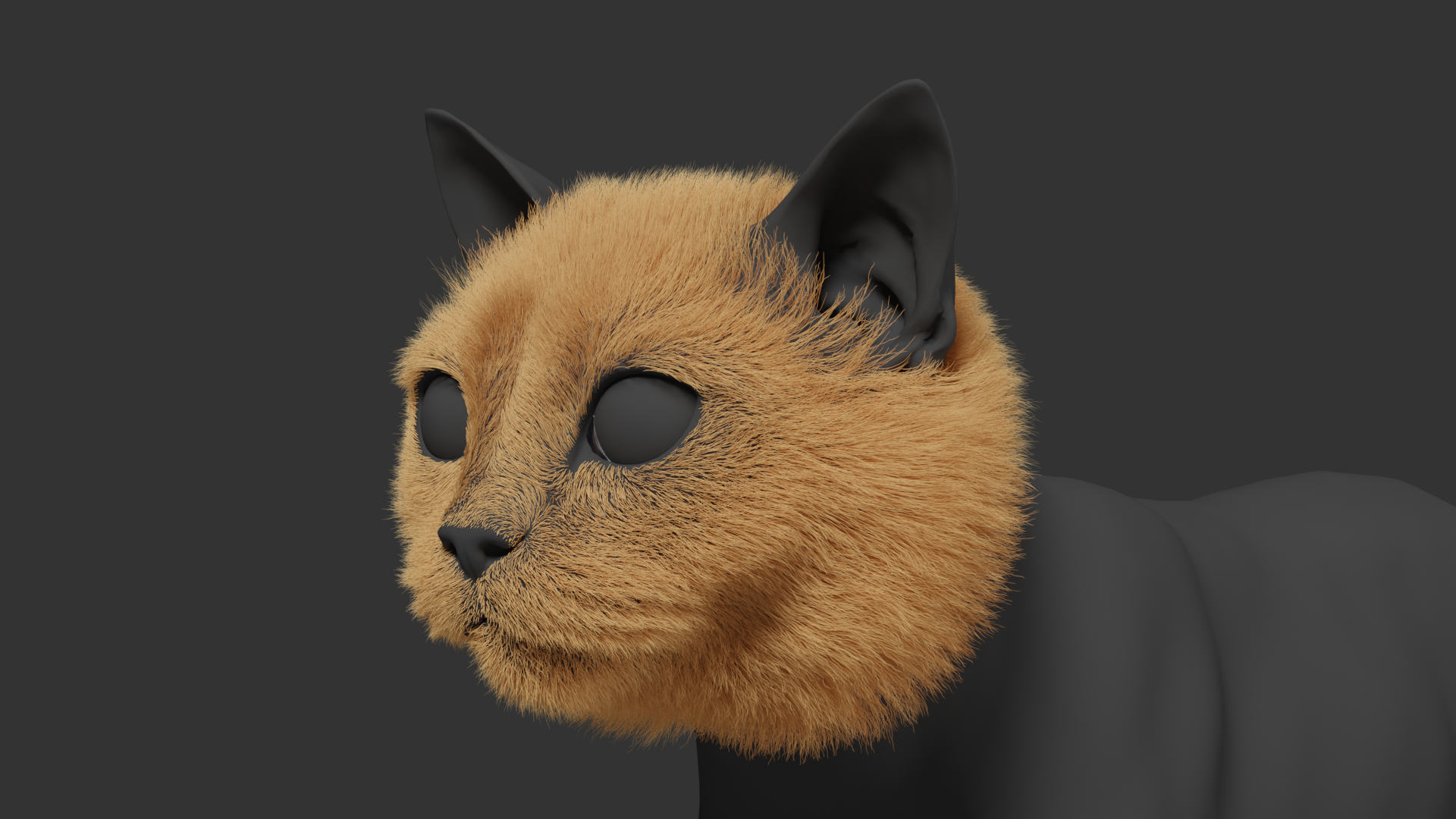
The muzzle of the cat also has some distinct structural features. We can emphasize the muzzle by adjusting the hair length.
Here, we can use another Trim modifier and control the length variation by painting a texture. This helps define the structure around the muzzle while maintaining a natural transition into the surrounding hair.
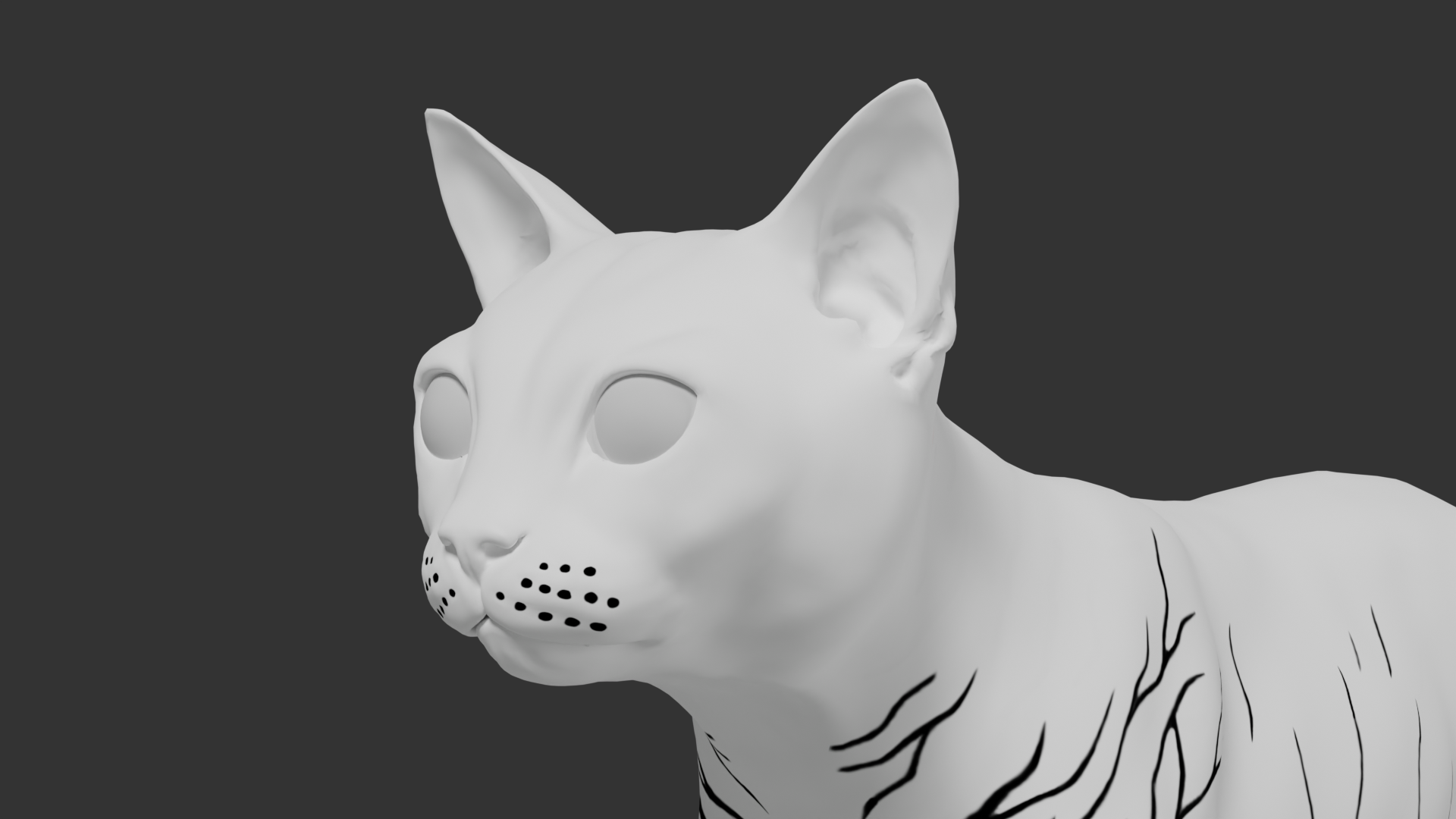
Since the parameters are set, let's take a look at the result.
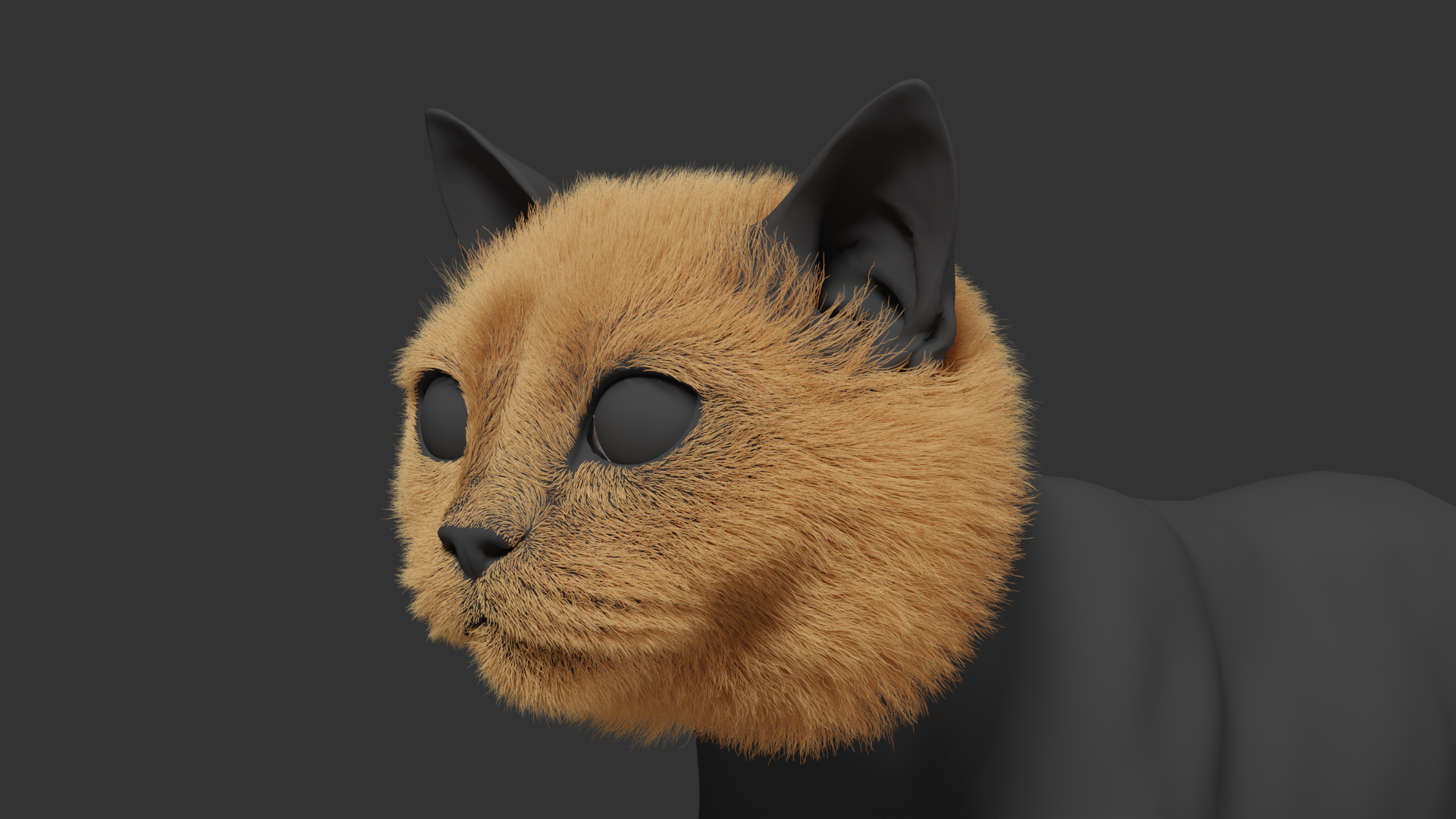
Creating Hair Material
Once the hair grooming is complete, we can move on to the hair material.
At this stage, we'll mainly control the following aspects:
- Base hair color
- Highlights and roughness
- Color variation between the roots and tips
- Hair color variation and mottling
First, create a new hair material and switch the viewport to Rendered mode for adjustment.
When working on the material, I recommend keeping the rendered viewport enabled so you can see the final result in real time as you adjust the node parameters.
First, add an Image Texture node and load the body hair texture.
Let's preview the current result, you'll notice that the colors don't look correct.
Set the color space of the Image Texture node to sRGB to restore the texture's correct color appearance.
Next, let's adjust the hair's overall appearance—specifically its transmission and roughness.
Create a new Diffuse BSDF node and connect the hair texture node to it.
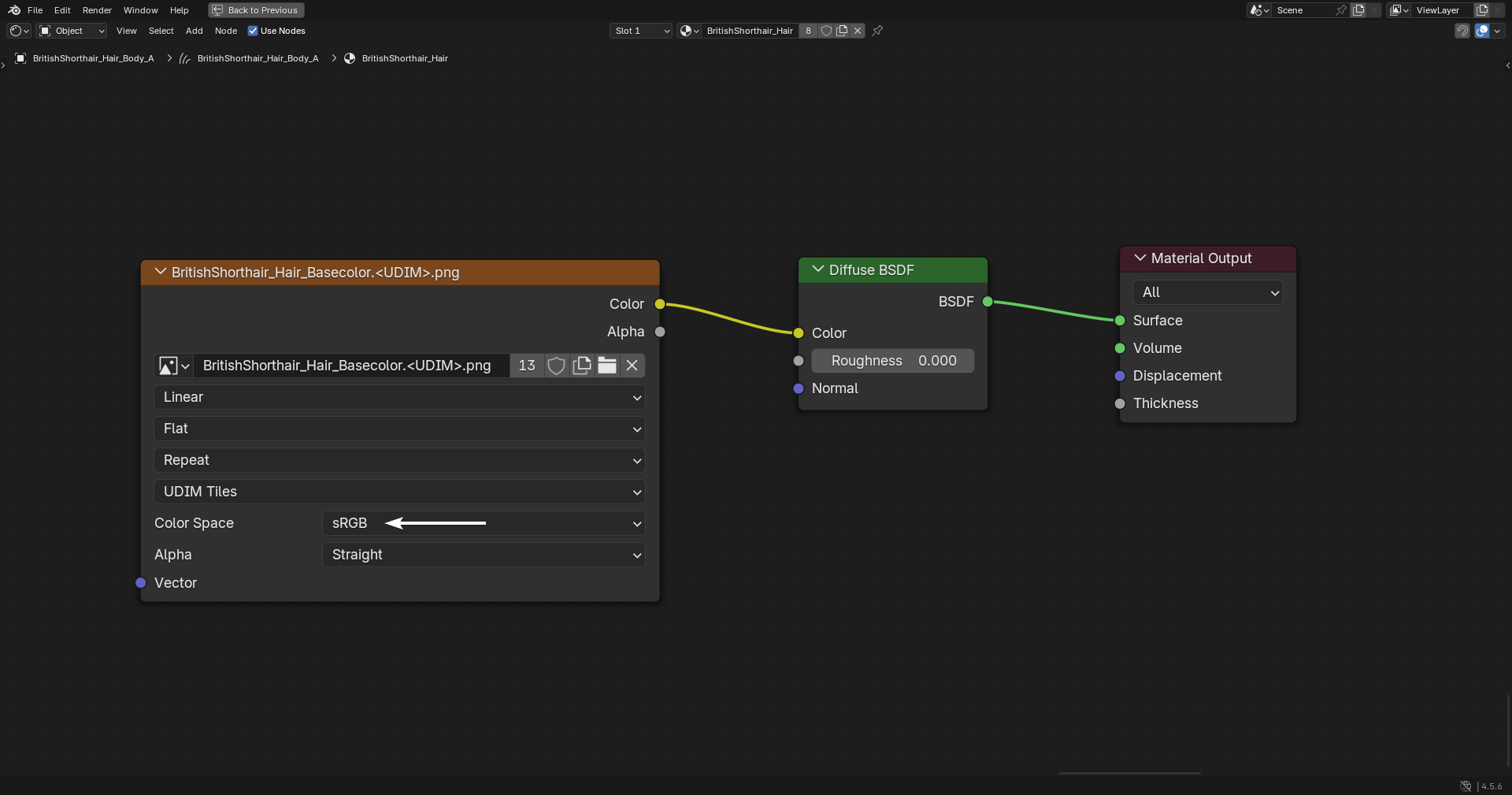
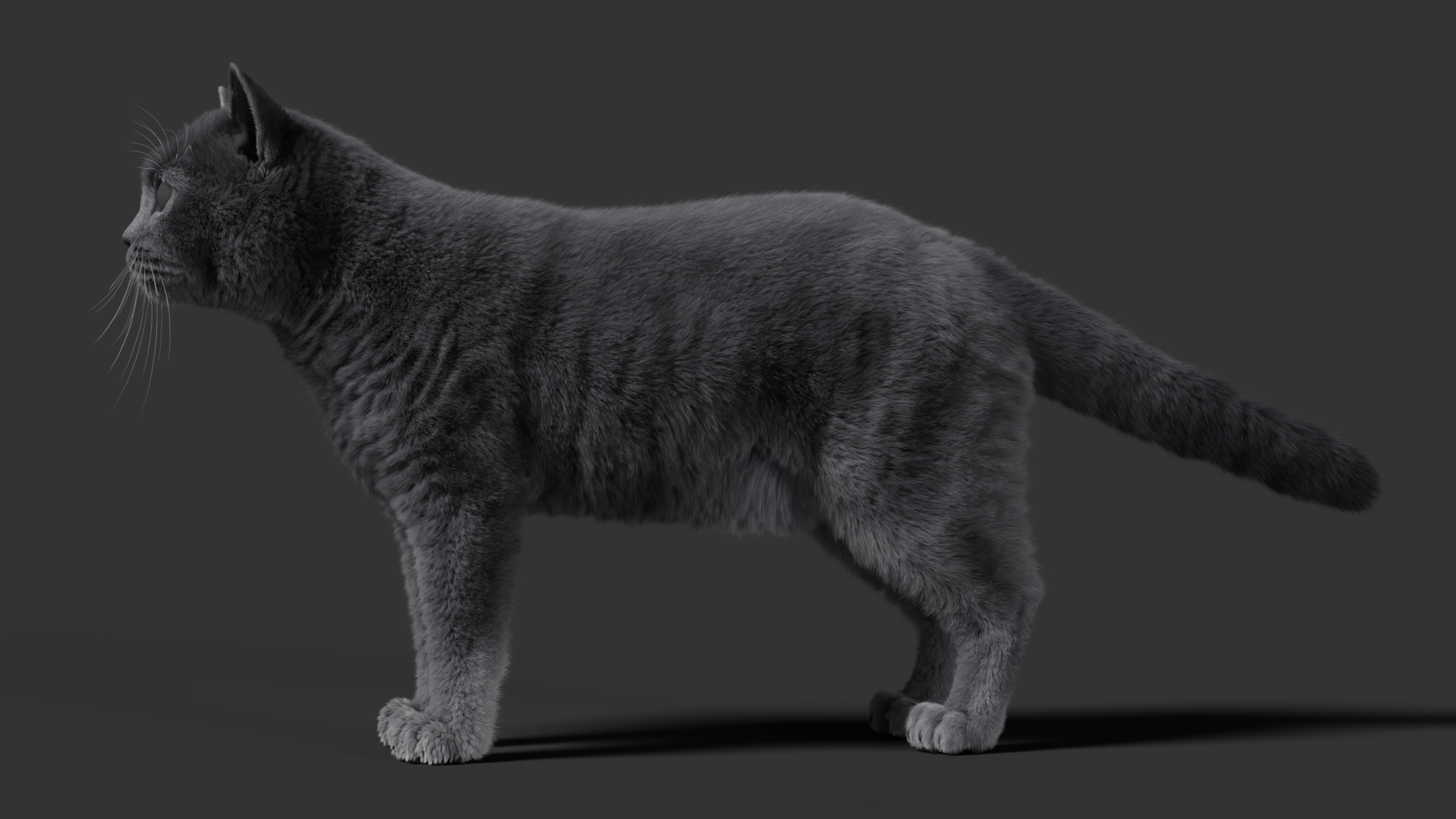
Then add a Principled Hair BSDF and adjust the hair appearance based on the reference.
Because British Shorthair fur is thick, its transmission effect isn't particularly strong. We therefore need to increase Radial Roughness appropriately to reduce the overly transparent appearance of the hair.
The reference also shows relatively soft highlights, so these two parameters should be increased to give the hair a fuller and thicker appearance.
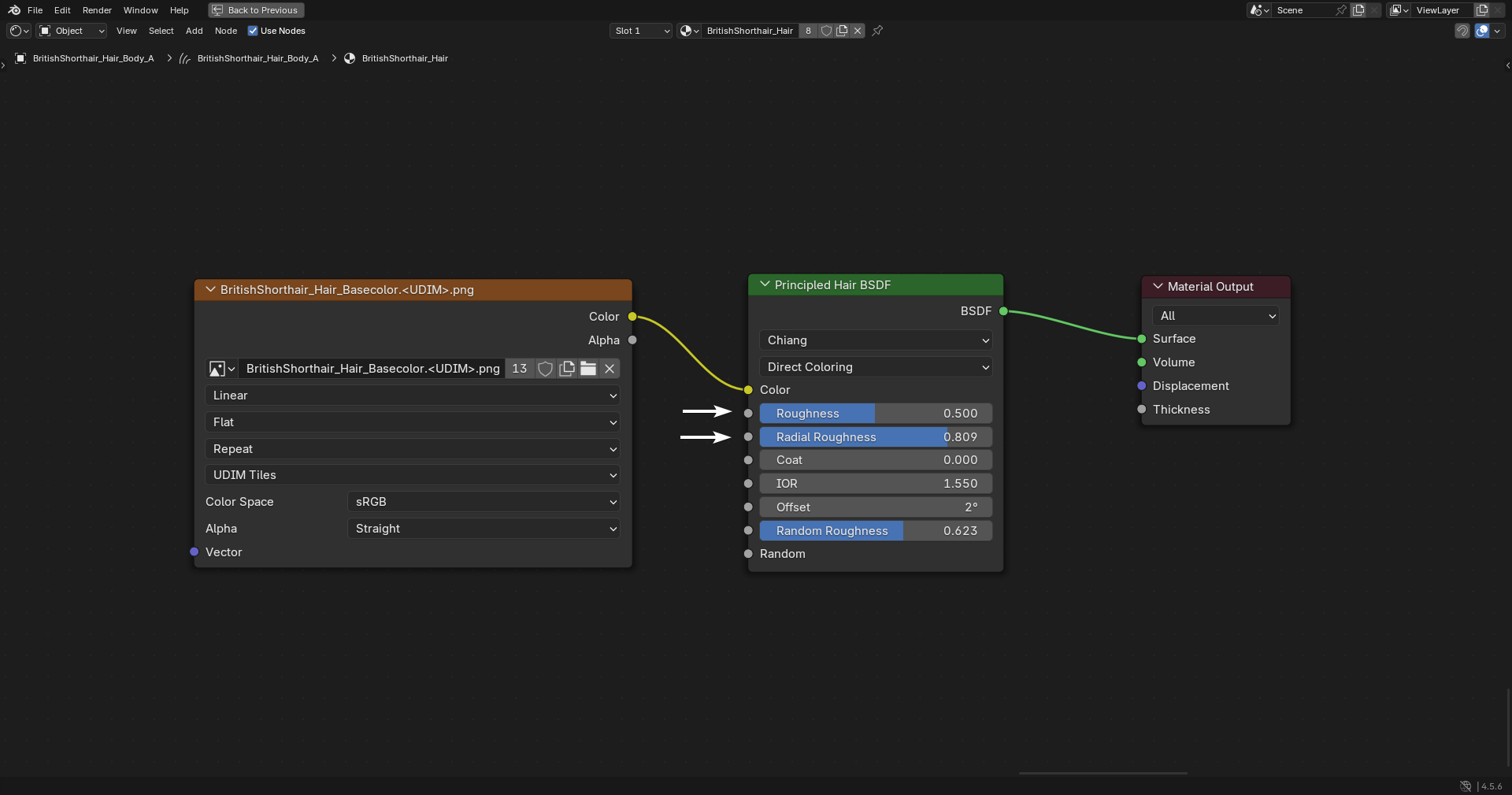
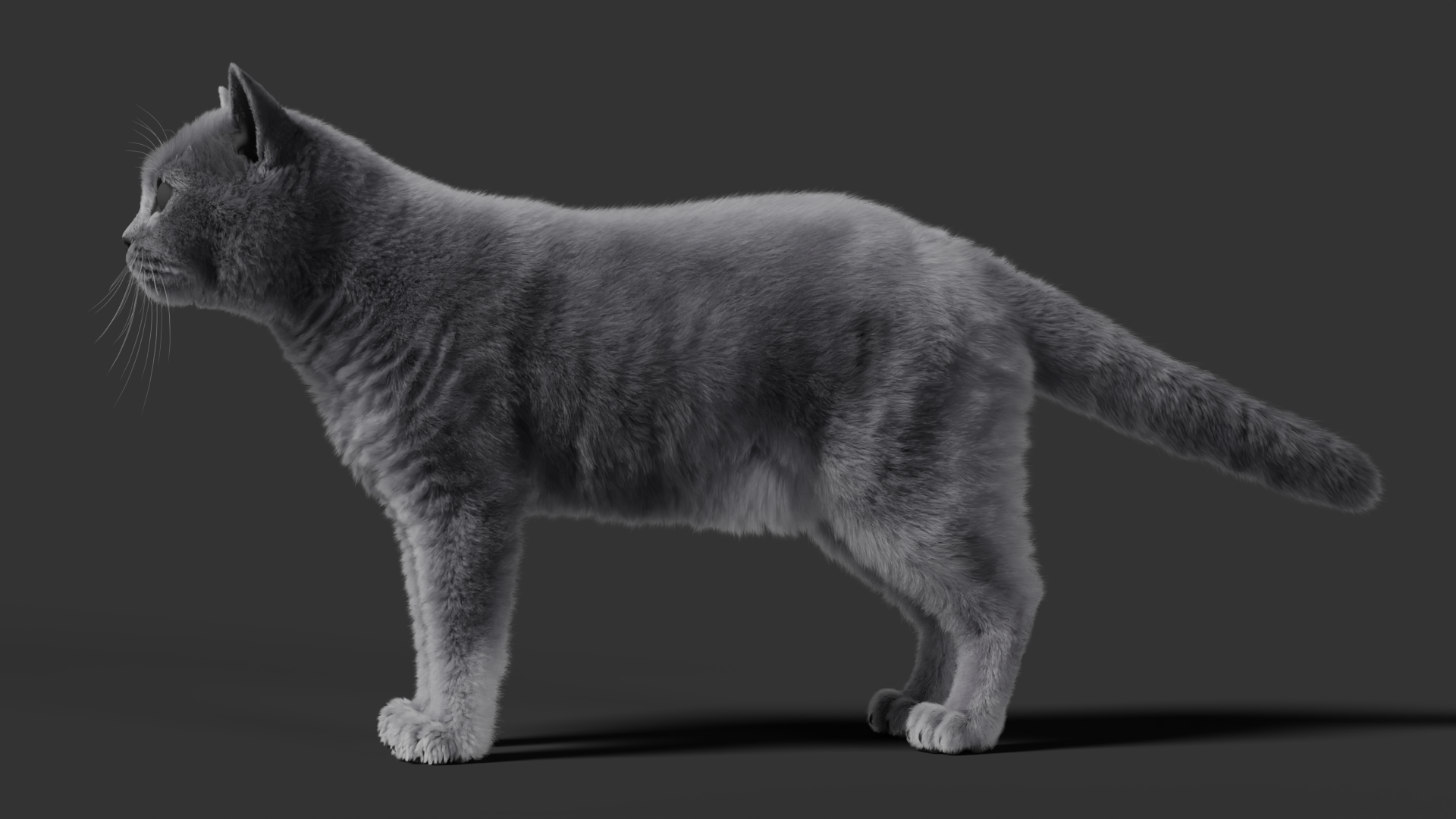
One thing to keep in mind is that using only Principled Hair BSDF can cause a significant color shift.
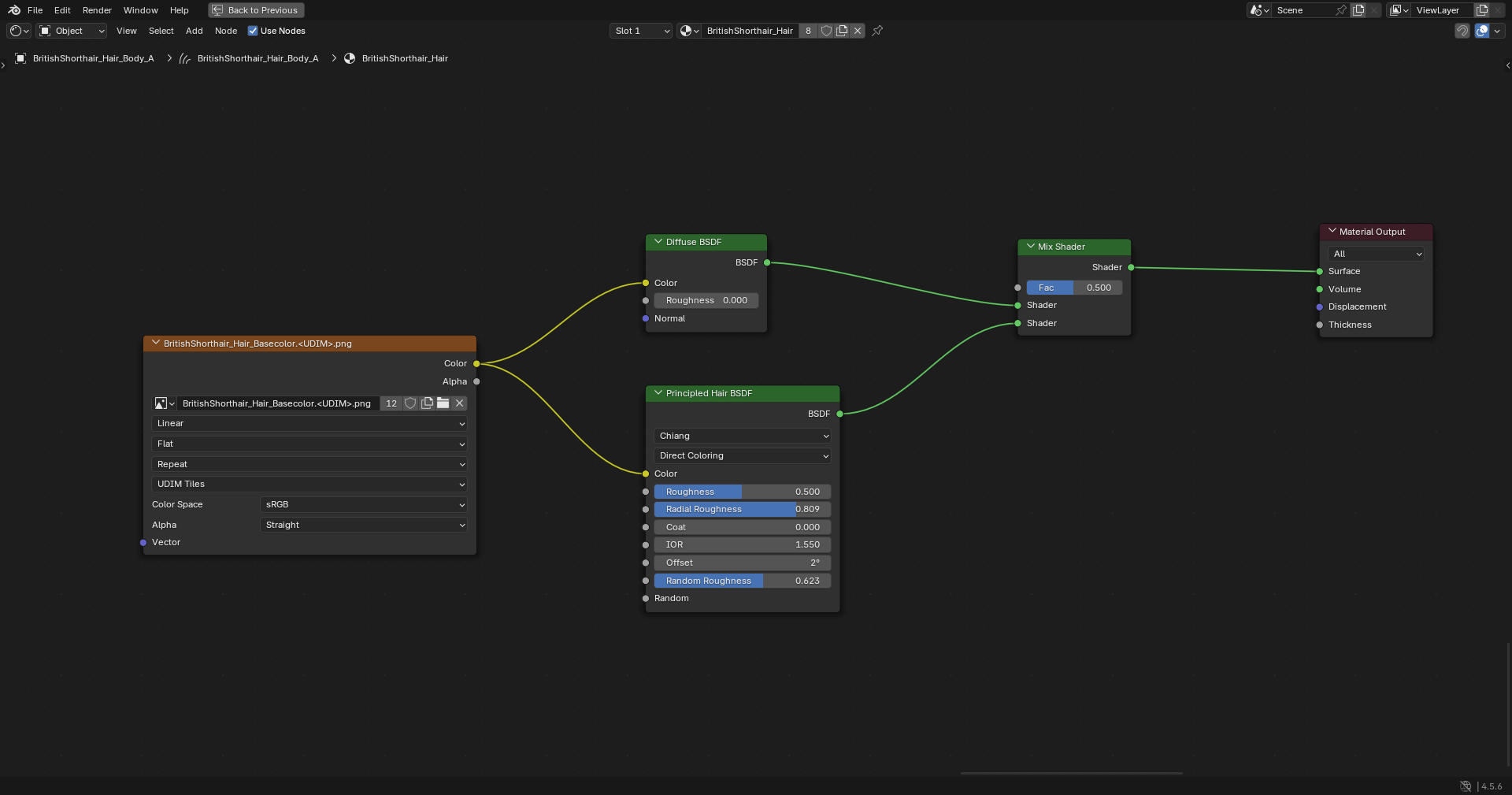
We therefore need to combine it with Diffuse BSDF.
Finally, mix the two shaders using a Mix Shader:
- Diffuse: Controls the color
- Principled Hair: Controls the hair appearance and shading
This allows us to maintain both accurate color and realistic hair shading.
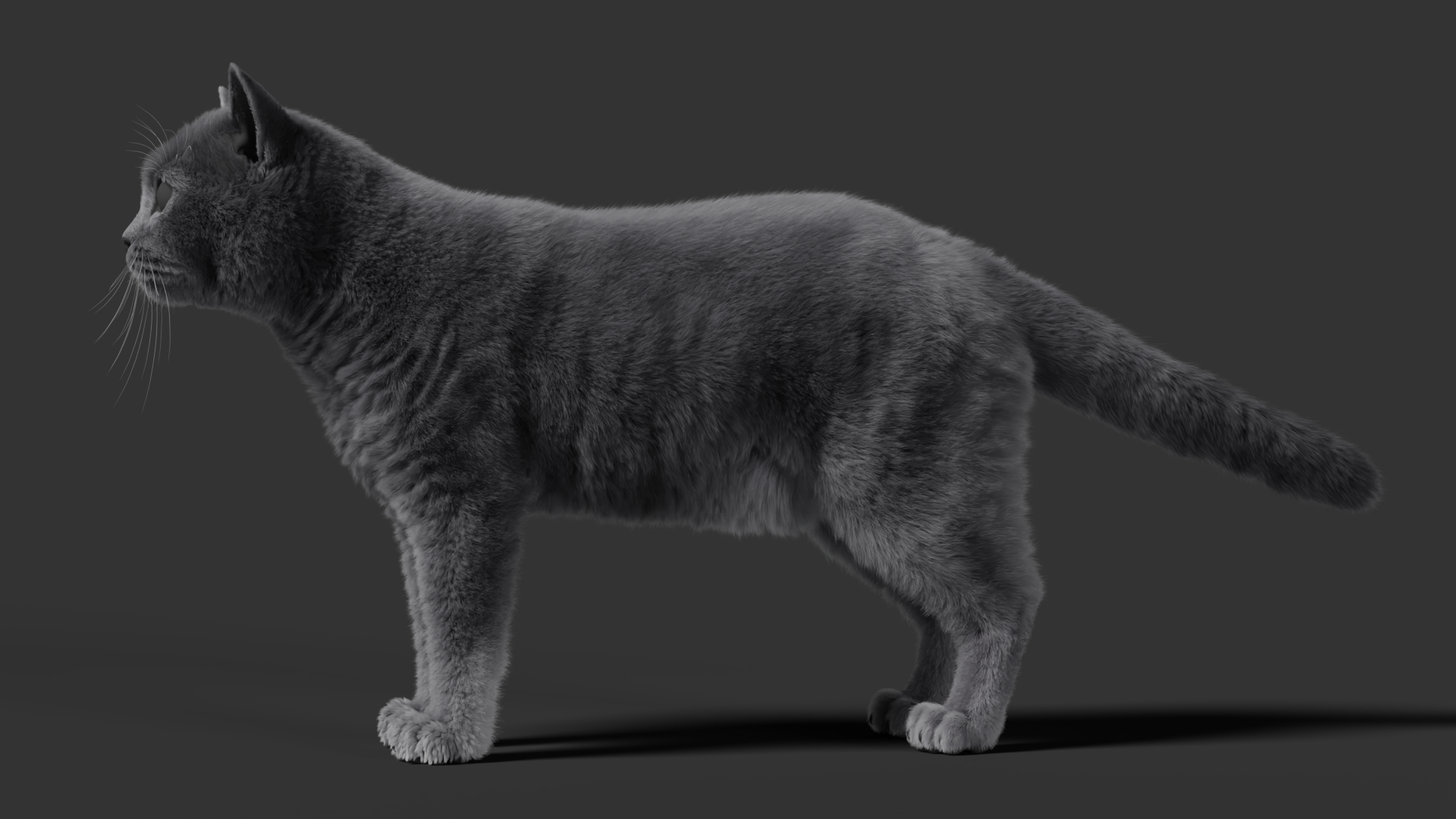
Once the basic material is complete, you'll notice that the hair looks too dark overall, with heavy shadows.
To reduce the darkness inside the hair, we can use Transparent BSDF and Light Path to optimize the shadowing.
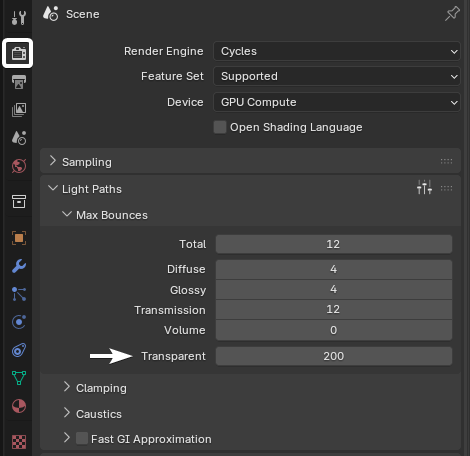
First, add a Transparent BSDF, then increase Transparent under the Light Path settings.
Because the character has a high hair density, if the value of Transparent is too low, the Transparent BSDF won't show much visible effect.
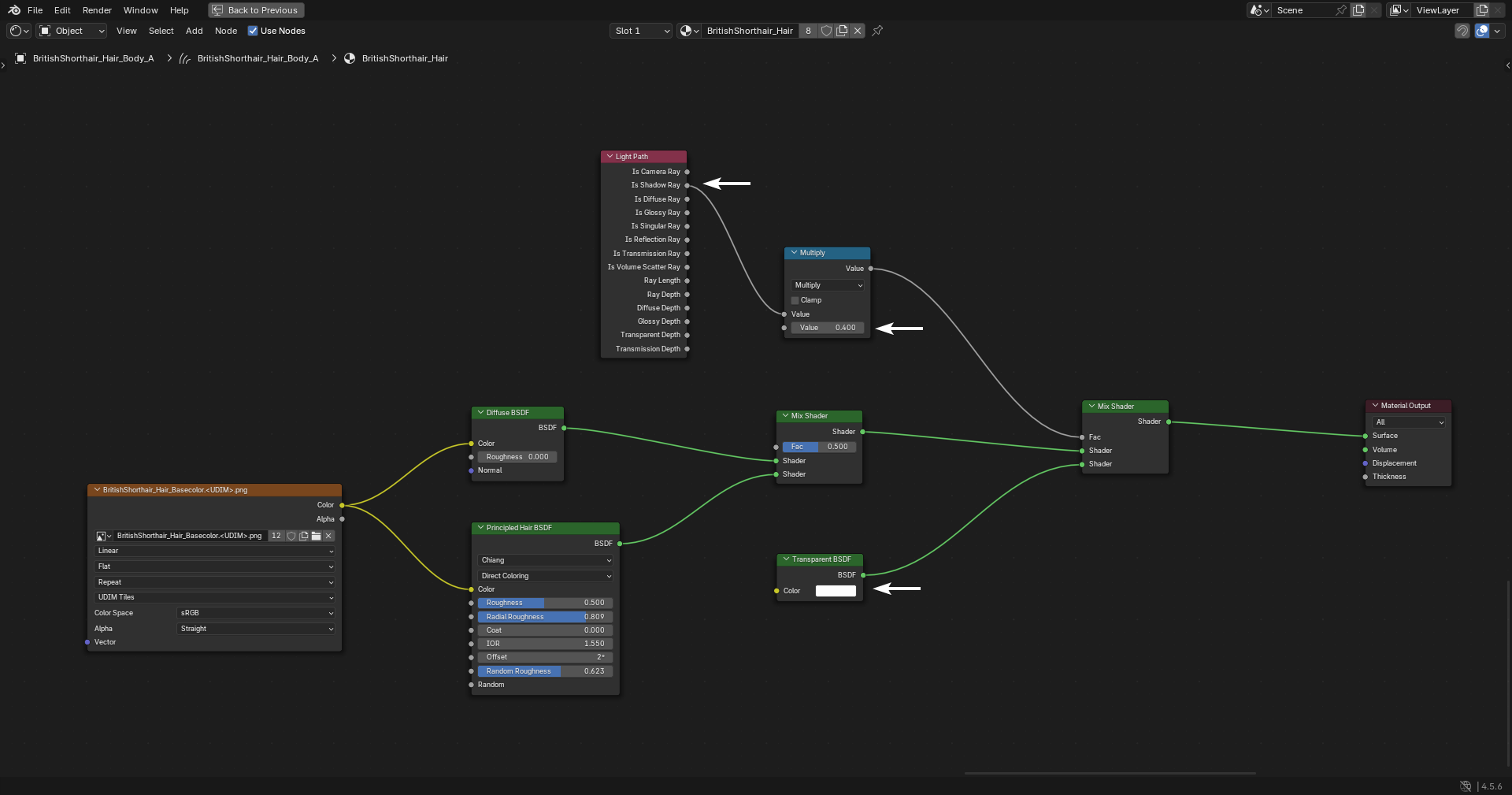
Next, open the Shader Editor:
- Mix the Transparent BSDF with the existing shader setup.
- Add a Light Path node.
- Connect Is Shadow Ray to the Fac input of the Mix Shader.
By default, the effect of Light Path can be quite strong, so we need to reduce its influence.
Add a Math node after Light Path and set the operation to Multiply. We can then use the numerical value to control the amount of shadow transparency.
One thing to be aware of is that when adjusting shadow transparency in the preview mode, Blender's material viewport may not update immediately.
If that happens, switch to Solid mode and then switch back to Rendered mode to force Blender to recalculate the result.
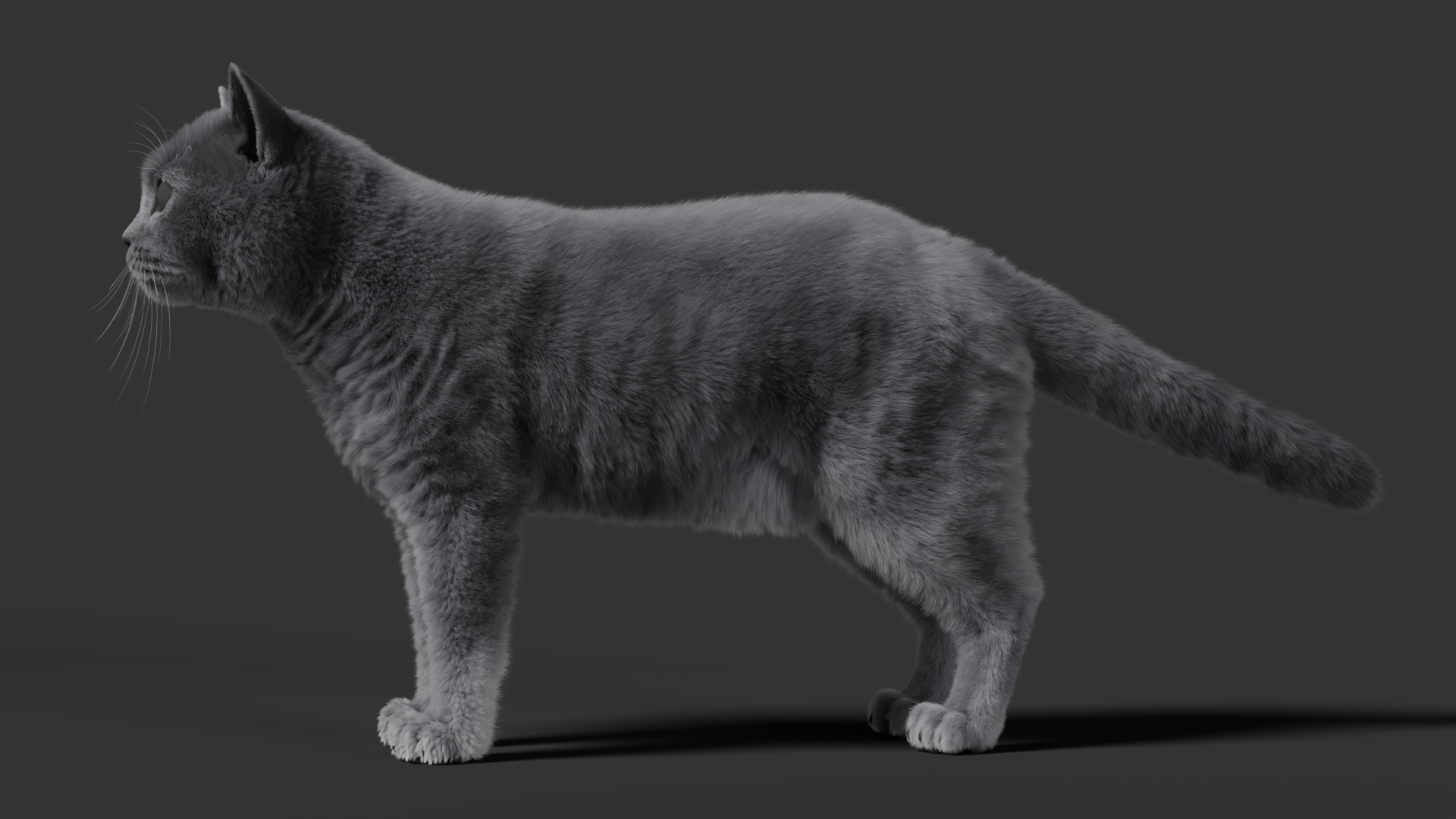
Once the basic shading is complete, we can further enhance the three-dimensional appearance of the hair.
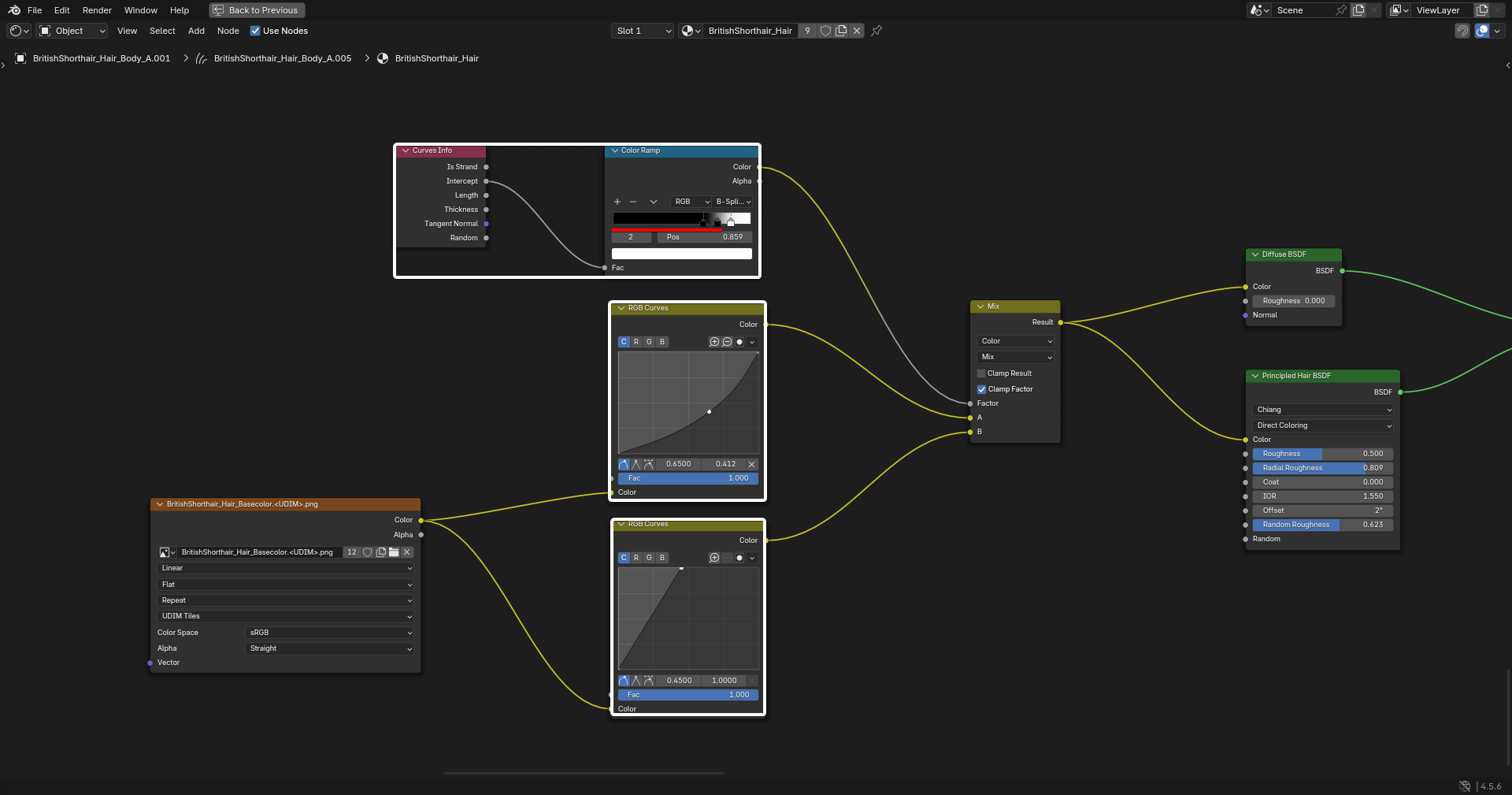
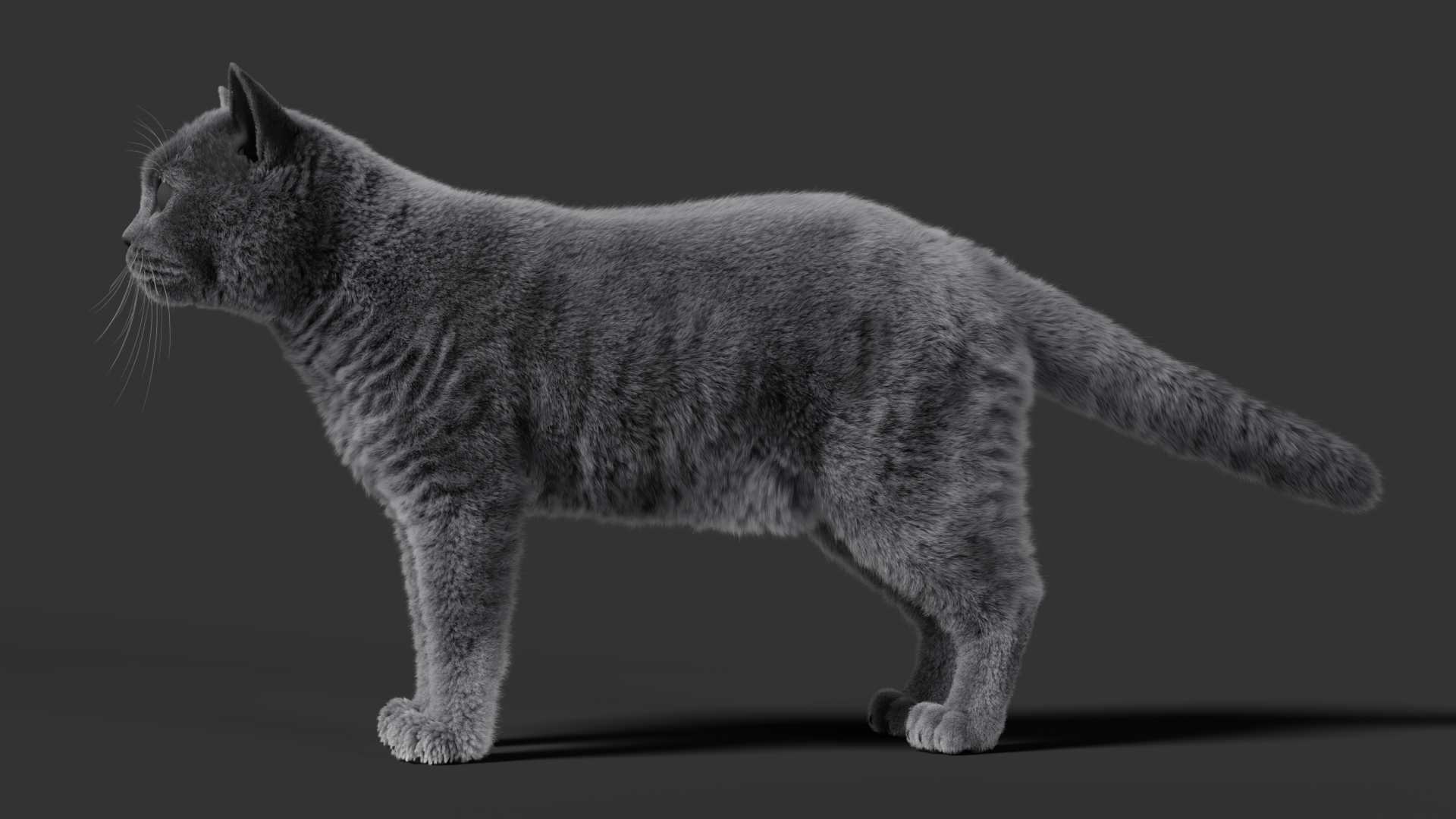
At the moment, the overall brightness of the hair texture is relatively high. We can add a Curves Info node and use the color difference between the roots and tips to enhance the sense of depth.
Use an RGB Curves node to slightly reduce the brightness of the root color and increase the brightness toward the tips.
The darker root region should also cover a larger range, creating a more obvious gradient and giving the hair a stronger sense of volume.
Once the color adjustment is complete, render the result for a final check.
Finally, let's create some color variation in the hair.
When looking at the render, you'll notice that simply adjusting the base colors isn't enough to create natural variation.
This is because Principled Hair BSDF tends to reduce the visibility of color variation, so we need to add another layer of color control.
The workflow is:
- Add an additional diffuse component.
- Use a texture as a mask for the color variation.
- Concentrate the variation mainly toward the tips of the hair.
British Shorthair fur is uniform in color overall, so the variation doesn't need to be very strong.
Too much variation will actually make the hair look less realistic, so keep it subtle and let it introduce only slight irregularity.
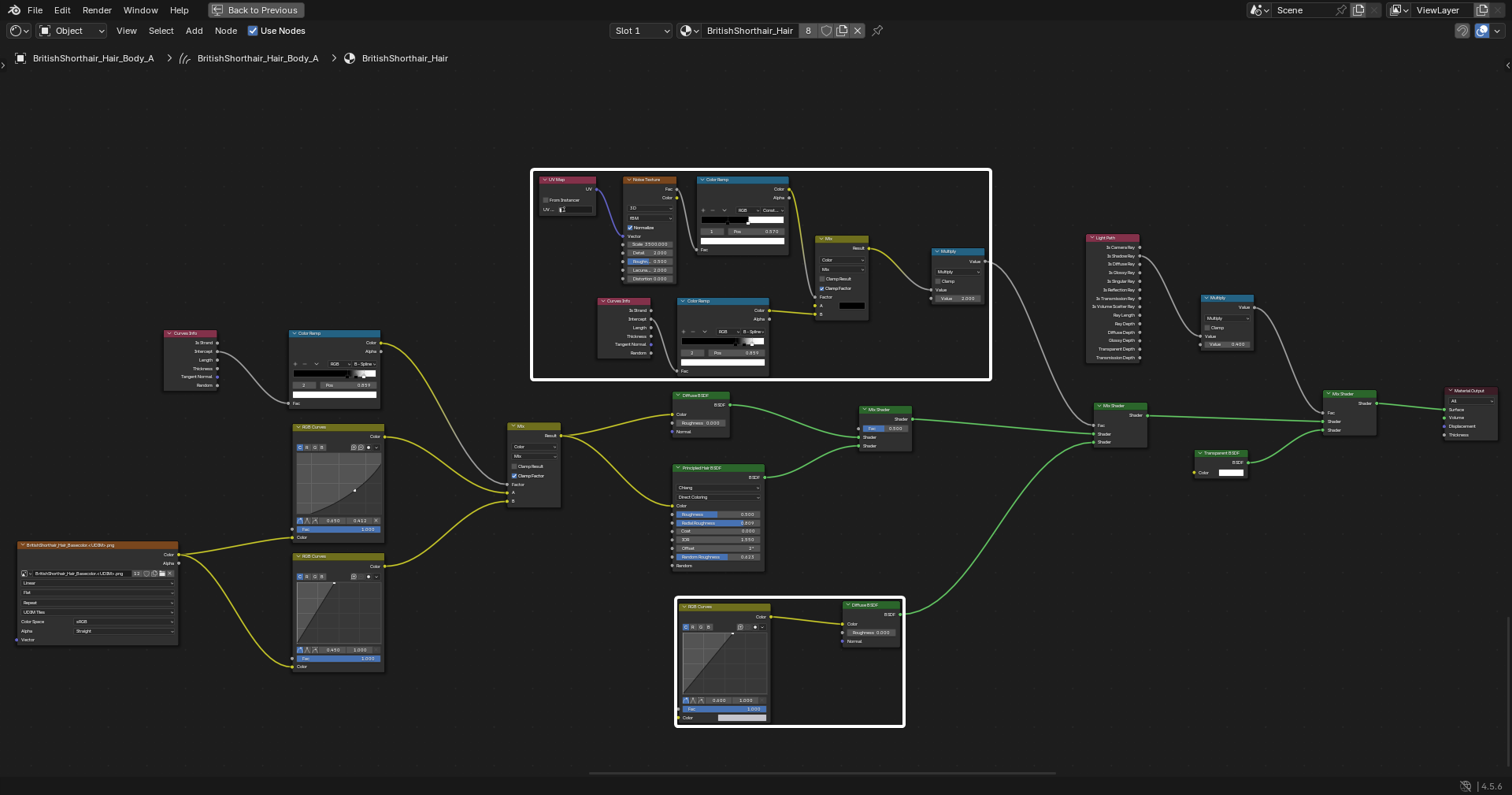
At this point, the British Shorthair fur material is complete.
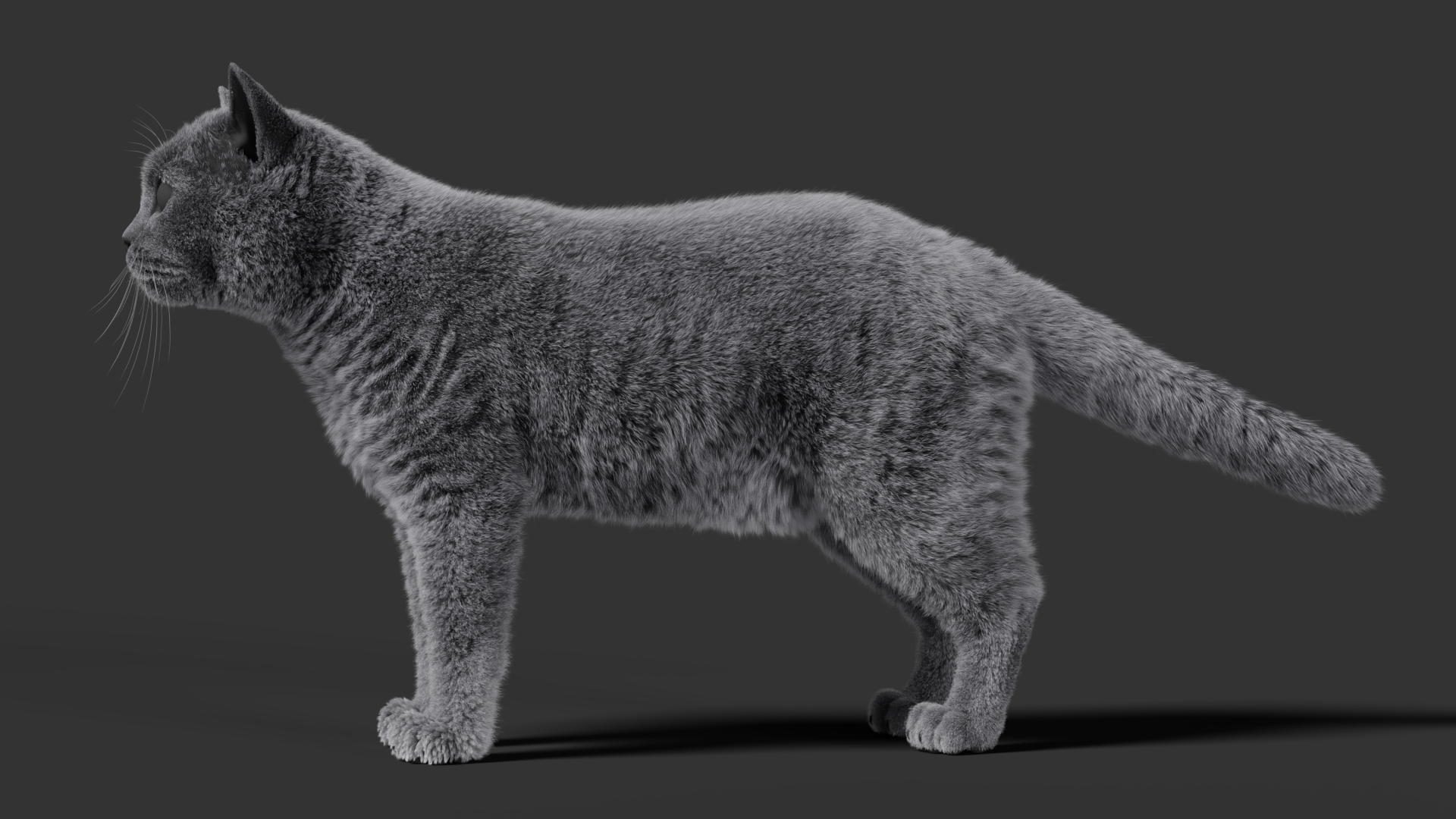
Earlier, during our reference analysis, we mentioned that cat fur generally consists of two layers.
We've now finished creating the undercoat, so next we'll create the topcoat.
But why didn't we create the topcoat during the grooming stage?
The main reason is that the effect isn't very obvious during the grooming stage, making it difficult to accurately judge the final appearance.
In addition, the visual appearance of the hair changes once the material has been applied. After the material, lighting, and rendering are finalized, we may still need to make further adjustments to the hair grooming.
For this reason, it's more practical to create the topcoat later in the process.
This avoids unnecessary rework caused by changes in the final appearance and makes the overall workflow more efficient.
The topcoat mainly serves two purposes.
First, it adds more depth and variation to the overall hair structure, making the coat look more natural.
Second, cats naturally have a fluffy appearance. Adding the topcoat makes the edges of the coat looser and softer, further emphasizing the characteristic fluffy look of cat fur.
Compared with the undercoat, the topcoat has several distinct characteristics:
- Longer hairs
- More randomness
- Lower hair count
These characteristics help create a realistic, fluffy appearance.
To create it, select the body hair and press <Shift> + <D> to duplicate a layer for further modification.
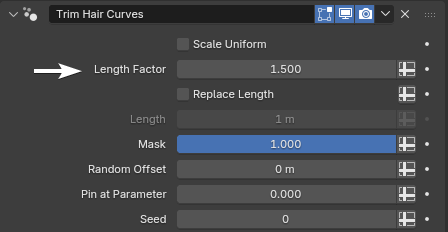
First, add a Length modifier. Pay attention to the order.
The Length modifier should not be placed at the very bottom. Instead, it needs to be placed after the Interpolate Hair Curves modifier.
If Length is placed at the bottom, it will affect the calculation results of the modifiers that come after it, which can lead to unexpected results.
The correct logic is:
First, use the Length modifier to increase the hair length, and then let the other modifiers process the result afterward.
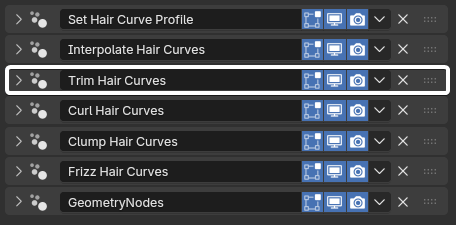
For the parameters, we can increase Length Factor to around 1.5.
However, we shouldn't simply make the entire coat longer.
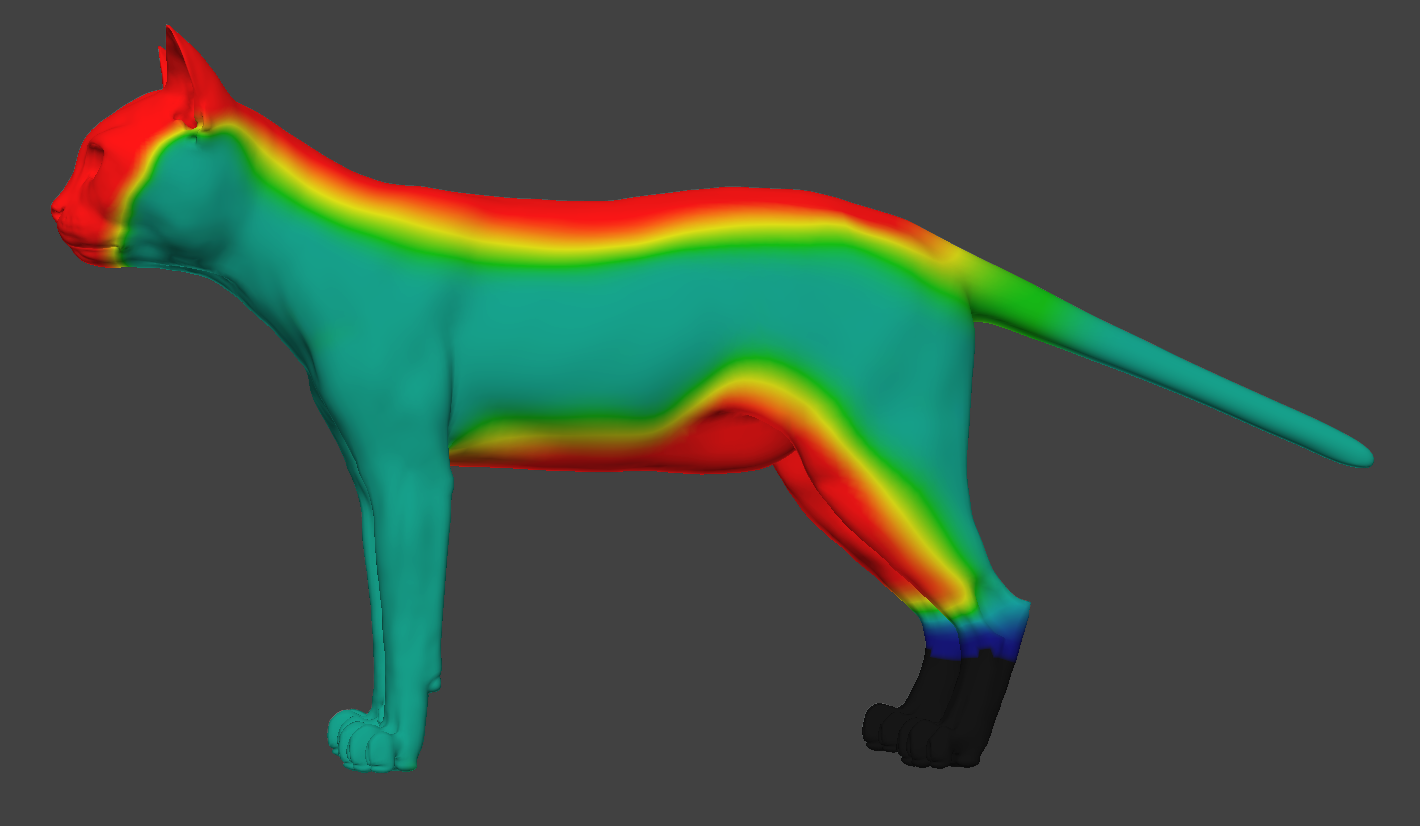
Instead, use weights to control where the additional length is applied, increasing the topcoat only in the areas where we want it to be obvious.
The hair count doesn't need to be very high. We can reduce it to 1151110.
Meanwhile, we can increase Random Offset to create more random hair lengths by setting it to 0.01 m.
The noise strength can also be increased slightly. Set Distance to 0.001 m.
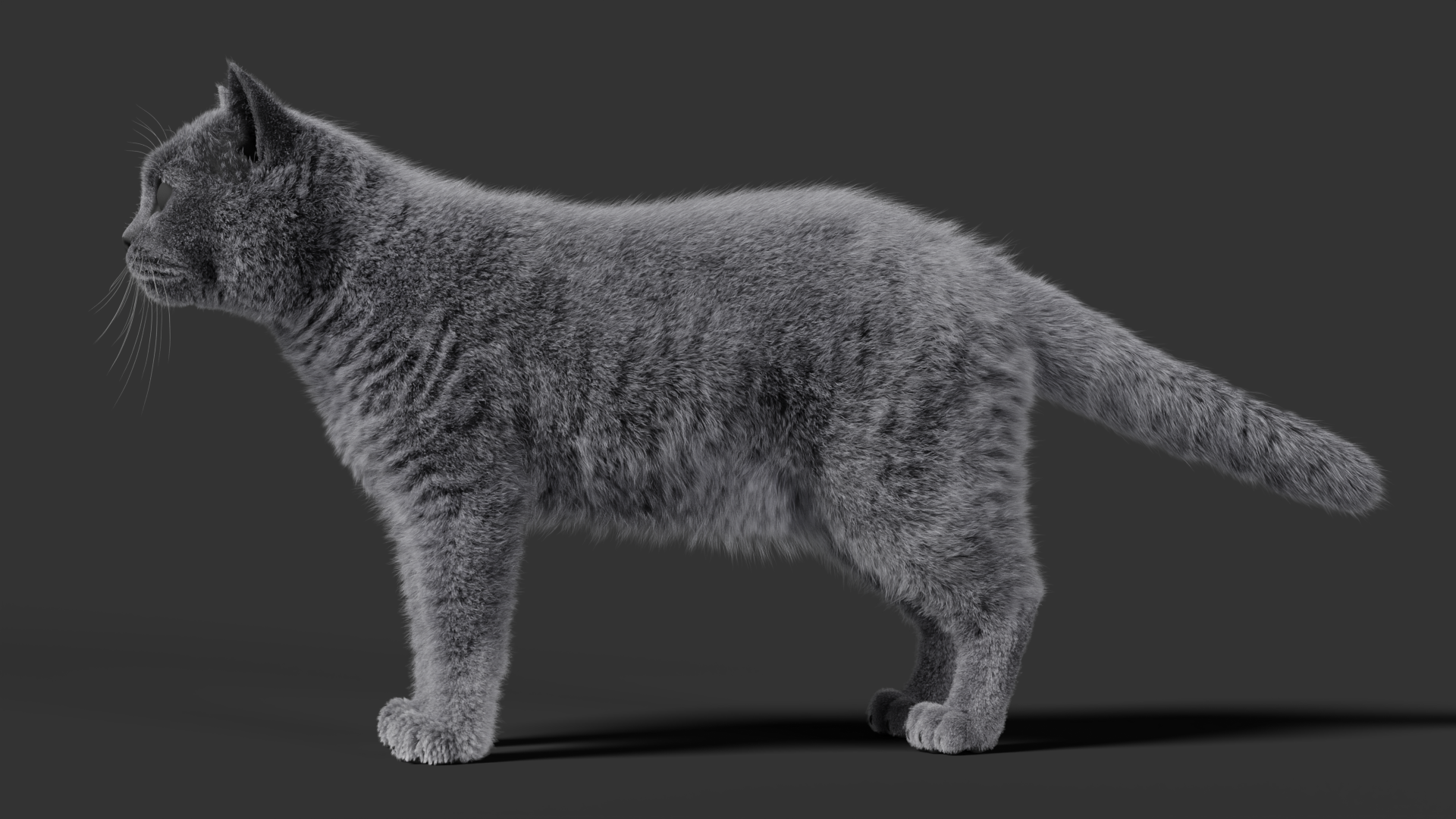
And with that, the topcoat is complete.
Summary
In this tutorial, we used Blender's new Hair Curves system and went through the complete workflow for creating British Shorthair fur, from analyzing the hair structure and dividing the hair into regions to grooming the shape and creating the final material.
When creating hair, the key isn't simply to increase the number of hairs. Instead, it's about using proper layering, controlled shape variation, and carefully designed materials to accurately reproduce the structural characteristics of real hair.
Hopefully, this tutorial gives you a better understanding of the workflow and underlying logic of Blender's Hair Curves system and helps you apply the same techniques to hair creation for other characters.

Loved your Blender conference presentation about this. Thank you for sharing your process for others to learn!
is this also applieable to birds?
Amazing , thank you 🙂
Thanks for this guide. Please is this for 5.2 or 5.3 blender.
Both versions are applicable.